
Cancel your trial or subscription, or update your payment method
Manage Eigent Cloud billing in Stripe: cancel a free trial, cancel a paid subscription, or change the card you pay with.
Ten artykuł jest obecnie dostępny w języku angielskim.
Your Eigent Cloud subscription and payment details are managed securely in Stripe, our payment provider. You reach Stripe from your Eigent account settings in a few clicks.
Open billing in Stripe#
- Go to eigent.ai and sign in.
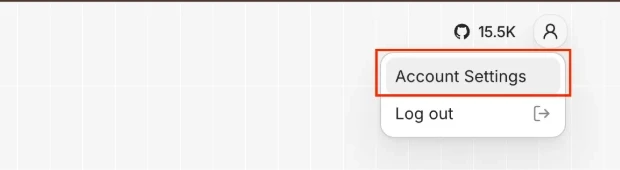
- Click your profile icon in the top-right corner, then select Account Settings.
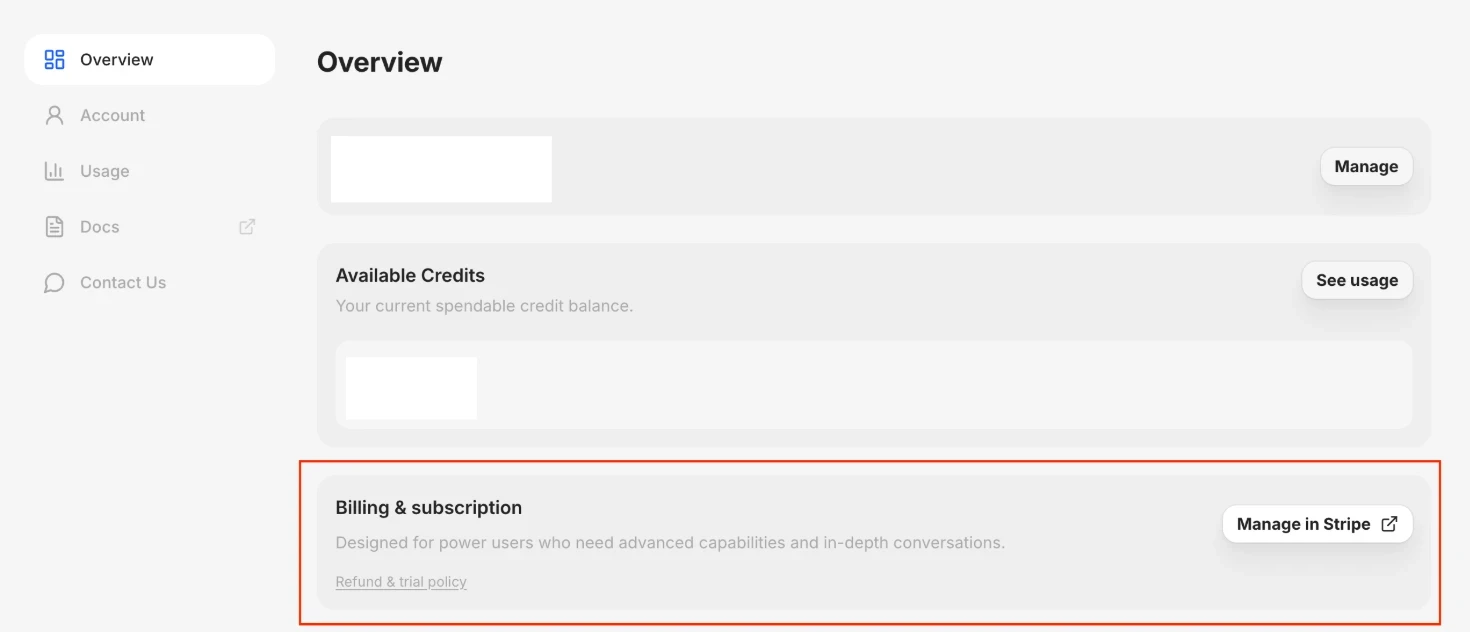
- On the Overview page, find Billing & subscription and click Manage in Stripe. The Stripe billing page opens in a new tab.
From the Stripe billing page you can do everything below.
Cancel your free trial#
- Open billing in Stripe.
- Under your current plan, click Cancel trial (or Cancel subscription).
- Confirm the cancellation.
If you cancel before your 7-day trial ends, you will not be charged. You keep trial access until the trial period ends.
Cancel your subscription#
- Open billing in Stripe.
- Under your current plan, click Cancel subscription.
- Confirm the cancellation.
Cancelling stops future renewals. Your plan stays active until the end of the current billing period, and it will not renew after that. Changed your mind? You can renew from the same page before the period ends.
Update your payment method#
- Open billing in Stripe.
- Under Payment method, click Add payment method and enter your new card details.
- Make the new card your default, and remove the old one if you no longer want it on file.
Future charges go to your default payment method.
Refunds#
Cancelling stops future charges but does not refund the current period. See our Refund & Trial Policy for details.
Nadal potrzebujesz pomocy?
Skontaktuj się z naszym zespołem, a pomożemy rozwiązać problem.


