
Eigent How-To: SAP-Bestellungen automatisieren
Eine Schritt-für-Schritt-Anleitung zum Erstellen und Einreichen von Bestellungen in SAP S/4HANA
 Eigent
Wer schon einmal in SAP gearbeitet hat, weiß: Das Erstellen einer Bestellung kann sich wie ein Marathon aus Klicks und Dateneingaben anfühlen. Es ist notwendig, aber nicht gerade spannend. Was wäre, wenn diese mühsamen Schritte von einem KI-Assistenten übernommen werden könnten, während Sie sich auf wichtigere Aufgaben konzentrieren?
In diesem Beitrag zeigen wir, wie Eigent – eine Multi-Agent-Desktop-KI-Workforce-App – sich bei SAP S/4HANA anmelden, durch die Oberfläche navigieren, ein Bestellformular ausfüllen, Positionen hinzufügen, die Bestellung einreichen und Ihnen sogar einen abschließenden Bericht über die durchgeführten Schritte liefern kann, und dabei als Ihr Eigent Open-Source-Coworker für SAP-Beschaffungs-Workflows fungiert.
Eigent ist die weltweit erste Desktop-Anwendung für eine Multi-agent workforce, mit der Sie eine maßgeschneiderte KI-Belegschaft aufbauen, verwalten und bereitstellen können, die Ihre komplexesten Workflows in automatisierte Aufgaben verwandelt. Es handelt sich um ein modulares Multi-Agenten-System, das komplexe Aufgaben aufteilen und durch spezialisierte, koordiniert arbeitende Agenten bearbeiten kann.
Die Multi-Agent-Koordinationsplattform von Eigent steigert die Produktivität, indem sie Ihre Workflows in automatisierte Aufgaben verwandelt. Basierend auf dem Open-Source-Framework CAMEL bringt sie parallele Ausführung, Anpassbarkeit und Privatsphäre in Ihre KI-Automatisierung. Los geht’s!
Schritt 1: Eine neue Aufgabe in Eigent starten
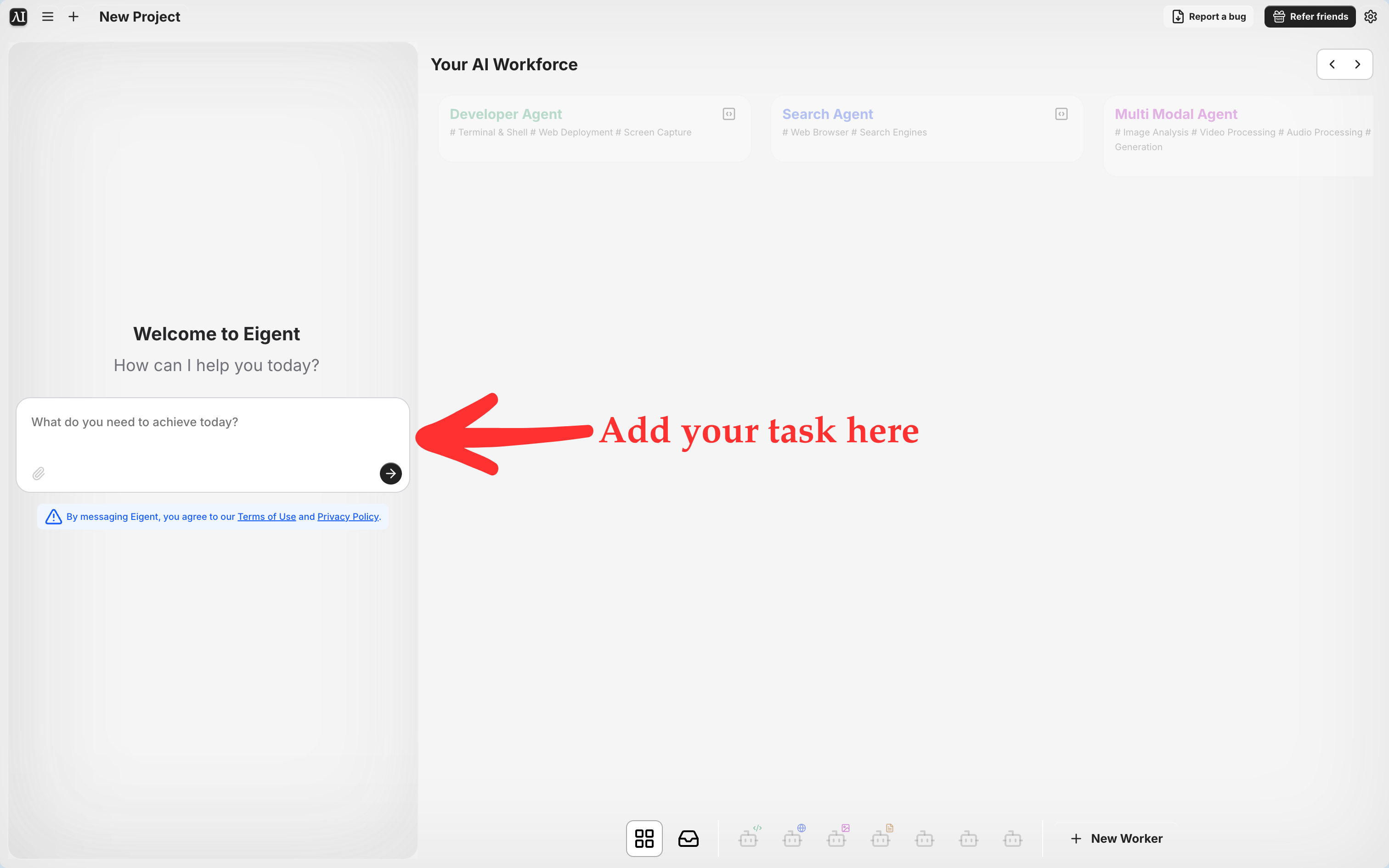
Eine neue Aufgabe in Eigent zu starten ist so einfach wie das Eintippen dessen, was Sie benötigen. Hier haben wir Eigent geöffnet und unsere Anfrage „Bestellung in SAP S/4HANA erstellen und einreichen“ eingegeben.
Zum Einstieg öffnen wir Eigent und erstellen ein neues Projekt (die App nennt es ein New Project, aber denken Sie daran als Aufgabe). Eigent begrüßt uns mit der freundlichen Aufforderung „Welcome to Eigent, how can I help you today?“. In das Textfeld tippen wir einfach ein, was wir tun möchten. In diesem Szenario ist die Anweisung klar: „Erstelle und reiche eine Bestellung in SAP S/4HANA ein; die Zugangsdaten für die Navigation in Eigent wurden bereitgestellt.“ Dann klicken wir auf den kleinen Pfeil-Button (Senden).
Was als Nächstes passiert, ist ziemlich cool: Eigent analysiert unsere Anfrage und erkennt, welche seiner KI-„Worker“ es einsetzen muss. Für eine webbasierte Aufgabe wie SAP startet es einen Search Agent, der als Webbrowser-Agent fungiert (für die Webnavigation) und bei Bedarf möglicherweise weitere Agenten. Aber all diese Komplexität bleibt im Hintergrund. Aus unserer Sicht haben wir einfach einen Befehl gegeben und die KI übernimmt jetzt!
Schritt 2: Eigent meldet sich bei SAP S/4HANA an
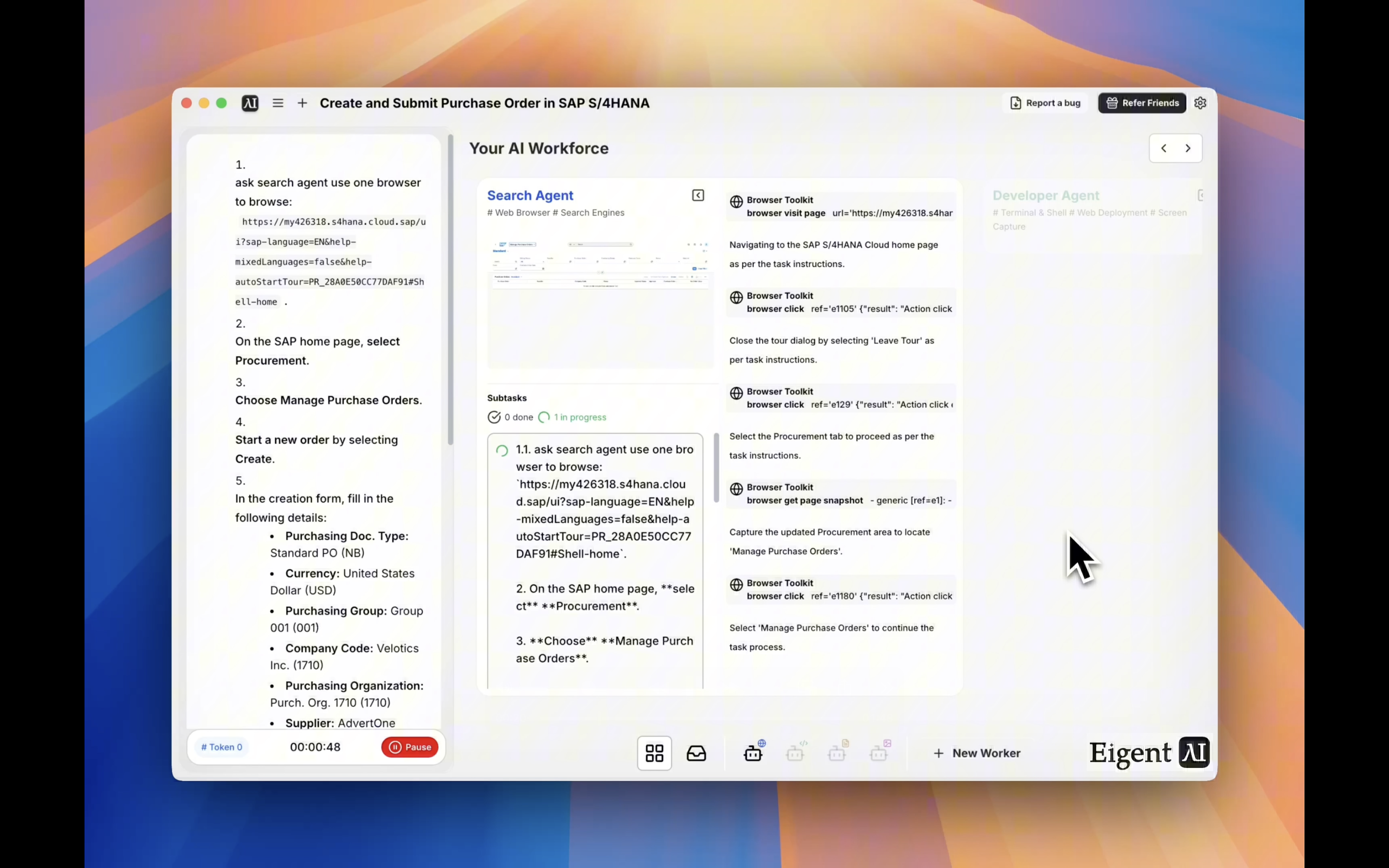
Eigent verwendet seinen integrierten Browser-Agenten, um zur SAP S/4HANA Cloud-Login-Seite zu navigieren und sich anzumelden – genau wie ein Mensch (nur viel schneller).
Sobald wir die Aufgabe absenden, öffnet Eigent einen eingebetteten Browser und geht direkt zur SAP S/4HANA Cloud-URL. Es kennt die Adresse (entweder aus dem Prompt-Kontext oder einer vordefinierten Einstellung) und lädt die SAP-Login-Seite. Eigent übernimmt den Login-Prozess automatisch – eventuell sind Zugangsdaten bereits gespeichert oder ein SSO-Mechanismus ist vorhanden, sodass es sich sicher und ohne menschliche Hilfe authentifizieren kann.
In unserem Fall hat sich die KI innerhalb weniger Sekunden angemeldet und den SAP-Startbildschirm erreicht. Sie können tatsächlich sehen, wie eine Miniaturansicht der SAP-Oberfläche im Eigent-Fenster erscheint, während sie geladen wird. SAP könnte einen Willkommensdialog oder ein Tutorial-Popup einblenden (diese kleinen „Einführungsrundgänge“, die oft erscheinen). Kein Problem: Eigent erkennt es und schließt es (zum Beispiel durch Klicken auf den Button „Leave Tour“ oder „Close“). Jetzt beginnt die eigentliche Arbeit.
Schritt 3: Die SAP-Oberfläche wie ein Profi navigieren
Eigent klickt sich automatisch durch die SAP-Oberfläche. Hier hat es ein Pop-up-Tutorial geschlossen, den Tab Procurement ausgewählt und die Option Manage Purchase Orders lokalisiert.
Hier wird es spannend: Eigent steuert jetzt die SAP-UI für Sie. In unserem Beispiel besteht die Aufgabe darin, eine Bestellung zu erstellen, also muss die KI zum passenden Modul navigieren. Die SAP-Oberfläche (in diesem Fall ein Fiori Launchpad oder etwas Ähnliches) verfügt über viele Kacheln und Menüs. Eigent weiß jedoch genau, wohin es gehen muss.
Es klickt im Startseitenmenü auf den Tab „Procurement“. Anschließend findet und klickt es im Beschaffungsbereich auf „Manage Purchase Orders“. Das entspricht dem Vorgehen eines Benutzers, um mit dem Erstellen einer neuen Bestellung zu beginnen. Eigent kann Buttons und Links entweder anhand des Textes oder anderer Attribute erkennen – es liest den Bildschirm quasi mit und interagiert intelligent damit. Und falls es Zwischenschritte gäbe (z. B. eine Organisation auswählen oder Benachrichtigungen schließen), würde der Agent auch diese übernehmen.
(Ein schöner Aspekt von Eigent ist, dass Sie diese Aktionen in Echtzeit verfolgen können. In der Benutzeroberfläche der App sehen Sie ein Protokoll jedes einzelnen Schritts – z. B. „Browser click: Register Procurement ausgewählt.“ Es ist, als würde man einem sehr gewissenhaften Kollegen bei der Arbeit zusehen, und das gibt Vertrauen, dass alles korrekt vorangeht.)
Schritt 4: Das Bestellformular ausfüllen
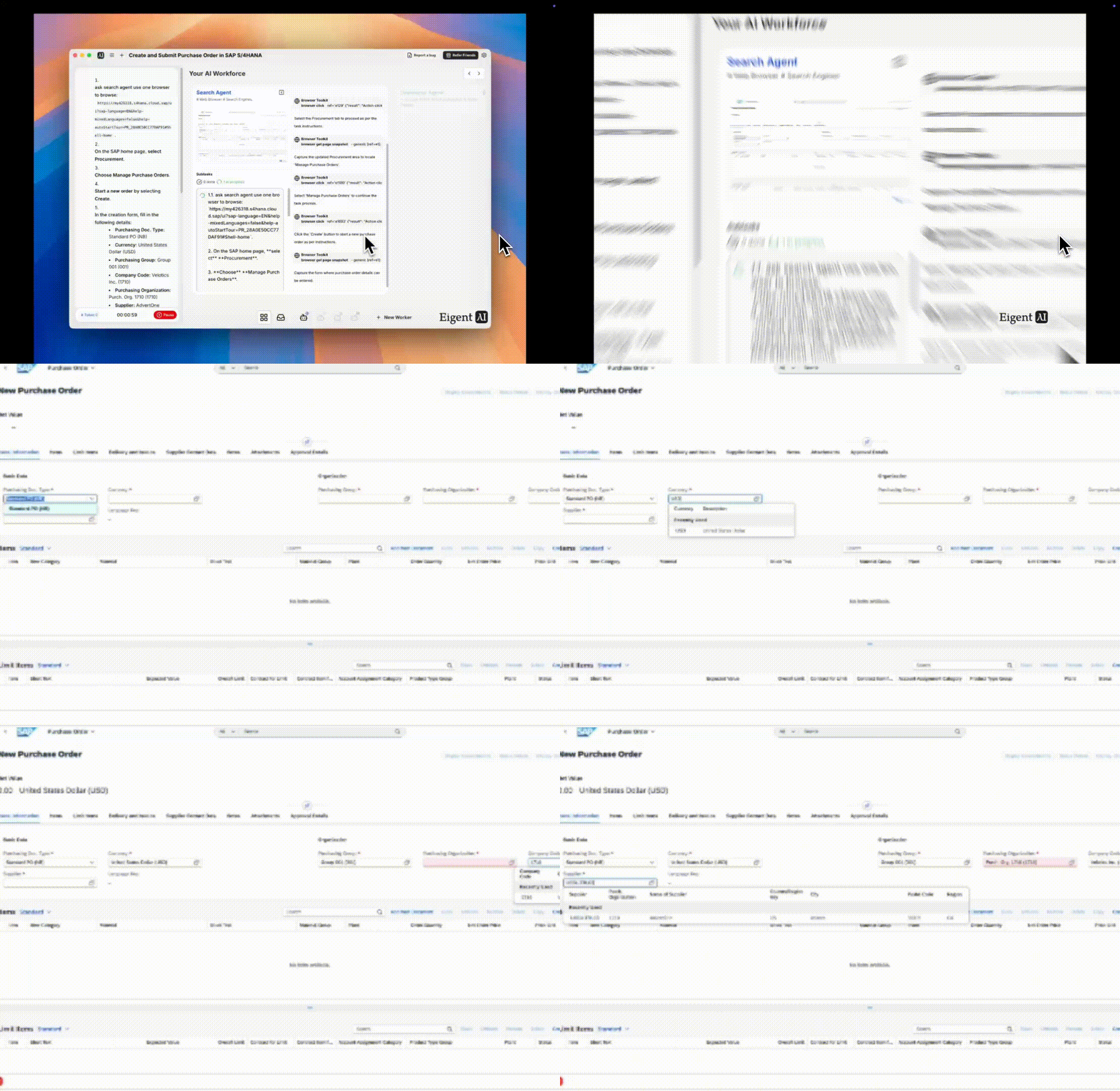
Eigent öffnet das Formular New Purchase Order und beginnt automatisch, die erforderlichen Felder zu befüllen, etwa Belegart, Einkaufsorganisation, Buchungskreis, Lieferant usw.
Nachdem es durch die Menüs navigiert ist, gelangt Eigent zum Bildschirm New Purchase Order. Das ist das Formular, in dem Sie normalerweise alle Details für die Bestellung eintragen würden. Statt dass Sie etwas tippen, übernimmt Eigent das für Sie. Es beginnt, die erforderlichen Informationen Feld für Feld einzugeben – genau so, wie Sie es tun würden:
- Es wählt das Feld Purchasing Document Type aus und setzt es auf „Standard PO (NB)” (die typische Belegart für eine Standardbestellung).
- Es setzt die Currency für diese Bestellung auf USD (United States Dollar).
- Es füllt die Purchasing Group aus (in unserer Demo zum Beispiel Group 001).
- Es wählt die Purchasing Organization aus (z. B. 1710, was einer bestimmten Geschäftseinheit entsprechen könnte).
- Es trägt den Company Code ein (hier beispielsweise 1710 für Velotics Inc. in diesem Szenario).
- Und es gibt die Supplier-Informationen ein. In unserem Fall wollten wir einen bestimmten Lieferanten, etwa Advent One (mit Lieferantencode USSU-TRLO3), also wählt Eigent diesen als Lieferanten für die Bestellung aus.
Eigent arbeitet sich im Grunde per Tab durch das Formular und füllt jedes Feld mit den korrekten Werten auf Basis des Aufgabenkontexts oder von Standardwerten aus. Es übernimmt die ganze Dateneingabe für Sie und stellt sicher, dass alles korrekt ausgefüllt ist, bevor es weitergeht. Kein Vergessen mehr, die Belegart zu setzen, oder die falsche Buchungskreisnummer auszuwählen – die KI hat das im Griff.
Schritt 5: Die Bestellung einreichen (und bestätigen)
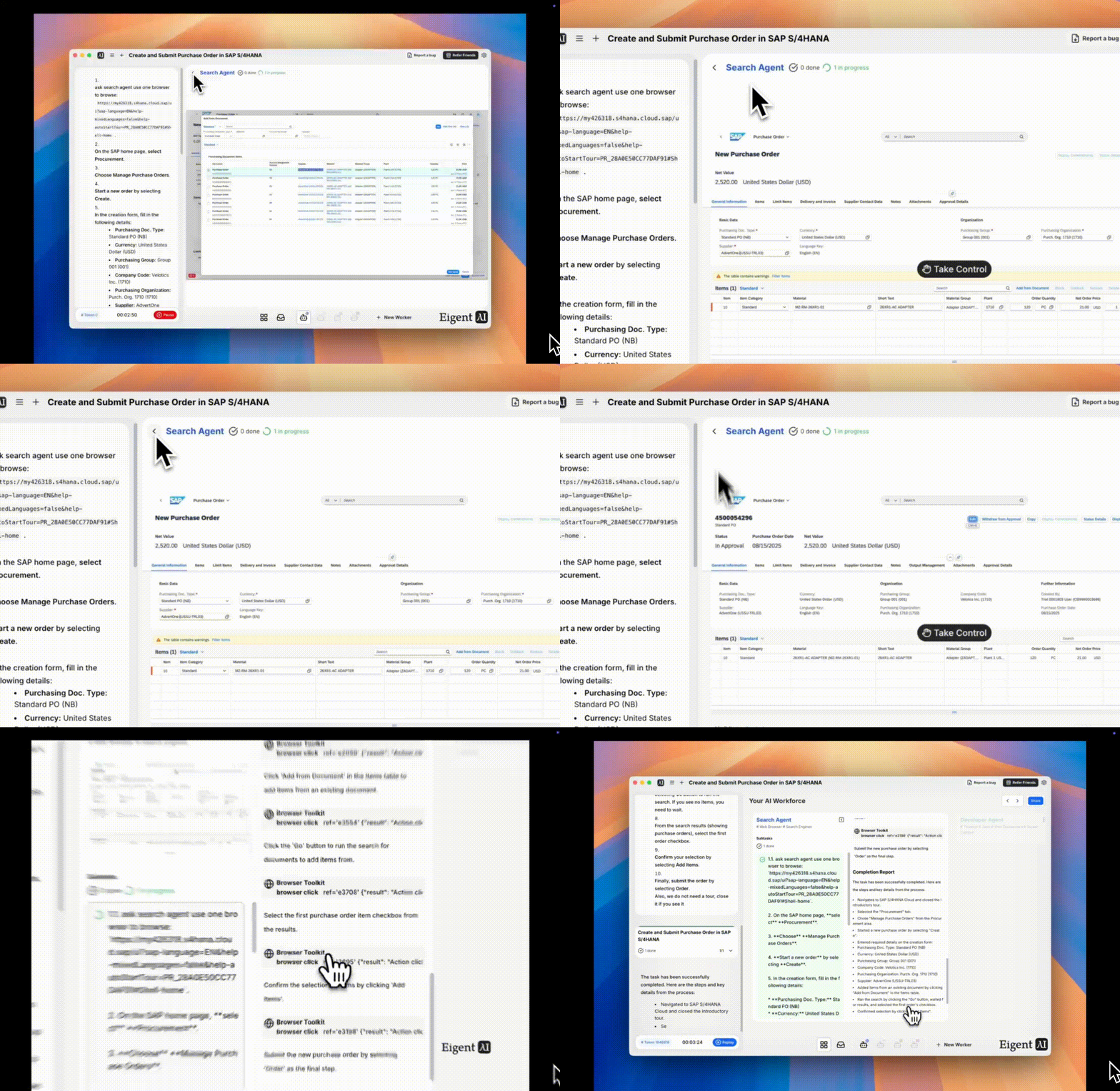
Nachdem alle Details eingetragen und Positionen hinzugefügt wurden, reicht Eigent die Bestellung ein, indem es auf den Button Order klickt. Es verarbeitet die Bestätigungsabfrage und notiert die Erfolgsmeldung, dass die Bestellung erstellt wurde.
Jetzt kommt der Moment der Wahrheit: die Bestellung absenden. Eigent klickt im SAP-Formular auf den Button Order (Senden), genau wie Sie es tun würden, um die Bestellung abzuschließen. SAP könnte ein Bestätigungsfenster einblenden wie „Are you sure you want to order?“ – falls ja, bestätigt Eigent es. Innerhalb von ein oder zwei Sekunden erzeugt SAP eine Bestätigungsmeldung.
In unserem Lauf zeigte SAP eine Nachricht wie „Purchase order has been created.” Außerdem wurde eine Bestell-ID ausgegeben (zum Beispiel 4500054926). Eigent erfasst dieses Feedback. Die Aufgabe ist erledigt: Eine neue Bestellung wurde jetzt offiziell im SAP-System erstellt. 🎉
Beeindruckend ist, dass die gesamte Navigation, Dateneingabe und Übermittlung ungefähr genauso lange dauerte – oder sogar schneller – als es einen Menschen kosten würde, sich einfach nur anzumelden und zum Formular zu klicken. Eigent hat alles korrekt und konsistent erledigt, ohne müde oder abgelenkt zu werden.
Eigent hat die neu erstellte Bestellung (ID 4500054926) in SAP sogar geöffnet, um zu prüfen, dass sie vorhanden ist. Hier sehen wir die Bestelldetails in SAP (Status, Position usw.), was bestätigt, dass die Bestellung erfolgreich erstellt wurde.
Nach dem Absenden fragen Sie sich vielleicht: „Hat es wirklich funktioniert?“ Auch hier hat Eigent alles abgedeckt. In diesem Fall ist die KI noch einen Schritt weiter gegangen und hat die frisch erstellte Bestellung auf dem Bildschirm geöffnet. Wir sehen die Bestellung in SAP mit ihren Details: den Status (z. B. In Approval, da sie in SAP eventuell noch eine weitere Freigabe benötigt), den Nettobestellwert, den Lieferanten und die von uns hinzugefügte Position. Alles befindet sich genau dort, wo es sein soll. Das ist ein großartiger Plausibilitätscheck und schafft sofortige Transparenz, dass die Aufgabe korrekt ausgeführt wurde. Sie könnten SAP oder Berichte später natürlich auch manuell prüfen, aber das Live-Ergebnis ist ziemlich beruhigend.
Eigent erstellt einen detaillierten Abschlussbericht über den gesamten Prozess. Links sehen Sie eine Zusammenfassung der Schritte und wichtigen Details (wie die geklickten Buttons und die Bestellnummer). Dieser abschließende Bericht dient als Audit-Trail für die Aktionen der KI.
Zum Schluss erzeugt Eigent einen Completion Report für die Aufgabe. Betrachten Sie ihn als praktische Zusammenfassung oder als Audit-Protokoll. In der Eigent-Oberfläche zeigt das linke Panel nun eine Zusammenfassung aller ausgeführten Schritte und relevanter Datenpunkte. Zum Beispiel listet es Einträge wie: „Navigated to SAP S/4HANA Cloud and closed the introductory tour. Selected the Procurement tab. Chose Manage Purchase Orders. Started a new purchase order by selecting Create. Entered required details on the creation form... Submitted the order... Confirmation received: Purchase order has been created (ID 4500054926).“
Alle wichtigen Aktionen und Eingaben werden aufgezeichnet. Das bedeutet vollständige Transparenz – Sie wissen genau, was die KI in Ihrem Namen getan hat. Es ist, als würden Sie nach Abschluss der Aufgabe einen kleinen Bericht von Ihrem Assistenten erhalten. Dieser kann gespeichert oder später geprüft werden, was für Compliance oder einfach für ein gutes Gefühl äußerst hilfreich ist.
Bis hierher haben Sie gesehen, wie Eigent einen mühsamen Prozess in eine Aufgabe ohne manuelle Bedienung verwandeln kann. Aber warum ist das so wichtig? Hier sind einige Gründe, warum diese SAP-Bestellautomatisierung Aufmerksamkeit verdient:
- Zeitersparnis: Was für einen Menschen 10-15 Minuten dauern könnte (Menüs navigieren, Codes eintippen, Details abgleichen), erledigte Eigent in nur wenigen Minuten. Und für Sie ist es eine Zeit ohne Eingriff – Sie können etwas anderes tun, während die KI die Bestellung abschließt. Multipliziert man das mit Dutzenden Bestellungen, summieren sich die Einsparungen schnell.
- Genauigkeit und Konsistenz: Eigent wird nicht müde und macht keine Tippfehler. Die eingegebenen Daten entsprechen exakt dem, was Sie angefordert haben. Dadurch werden Fehler wie die Auswahl des falschen Lieferanten oder das Vertippen einer Bestellmenge reduziert, die in einem manuellen Prozess gelegentlich vorkommen können.
- Weniger Routinearbeit: Seien wir ehrlich: Bestellungen in SAP zu erstellen ist für Menschen nicht gerade die spannendste Aufgabe. Wenn Sie das an eine KI auslagern, können Sie und Ihr Team sich auf strategischere Arbeit konzentrieren (z. B. Verhandlungen mit Lieferanten, Ausgabenanalysen usw.), statt auf die ermüdenden Klicks.
- Proof of Concept für KI im Enterprise-Bereich: Dieses Beispiel zeigt, wie weit sich KI-Agenten entwickelt haben. Wir sprechen nicht nur über einfache Chatbots – hier handelt es sich um einen vollwertigen digitalen Arbeiter, der mit Unternehmenssoftware interagiert. Das öffnet die Tür zur Automatisierung vieler weiterer Prozesse (etwa Rechnungsverarbeitung, Berichtserstellung, Dateneingaben über verschiedene Systeme hinweg) mit minimalem individuellem Code. Die Multi-Agent-Architektur von Eigent bedeutet, dass es potenziell komplexe Workflows über mehrere Apps hinweg koordinieren kann, während Ihre Daten lokal auf Ihrem Rechner bleiben (da Eigent lokal ausgeführt wird).
Kurz gesagt: Eigent zeigt, dass selbst umfangreiche Enterprise-Workflows von KI-Agenten übernommen werden können. Das ist ein echter Gamechanger für Unternehmen, die ihre Abläufe optimieren möchten, ohne in teure maßgeschneiderte RPA-Lösungen zu investieren oder Cloud-Integrationen für sensible Daten zu riskieren.
Fazit
Das Erstellen einer Bestellung in SAP bedeutete früher eine Menge wiederholter Arbeit. Mit Tools wie Eigent fühlt es sich jetzt an, als hätten Sie einen unermüdlichen Assistenten, der genau weiß, was zu tun ist. Wir haben ein vollständiges Beispiel durchlaufen – vom Login bis zur finalen Bestätigung – und die KI hat für uns alles geklickt und getippt.
Wenn Sie ein technischer Anwender oder ein SAP-Power-User sind, stellen Sie sich vor, Sie binden eine KI-Belegschaft in Ihren Arbeitsalltag ein. Heute sind es Bestellungen; morgen könnte es die Automatisierung von Berichtsextraktion oder Benutzerverwaltung sein. Eigent macht das zugänglich, indem Sie einfach in natürlicher Sprache beschreiben, was Sie brauchen. Die eigentliche Arbeit (und das Klicken) übernimmt die Plattform im Hintergrund.
Also, warum nicht einfach ausprobieren? Wenn repetitive SAP-Aufgaben Ihren Tag ausbremsen, lassen Sie Eigent sie übernehmen und erleben Sie den Produktivitätsschub selbst. Es ist, als hätten Sie einen Kollegen, der die langweiligen Aufgaben tatsächlich gern macht und nie einen Fehler macht. Willkommen in der neuen Ära KI-gestützter Workflows, in der lästige Geschäftsprozesse nicht mehr Ihr Problem sind. Setzen Sie Eigent für Ihre eigenen SAP-Workflows ein und sehen Sie selbst, wie viel einfacher das Leben werden kann!
Recent Posts

Periodic Neon: Die im Labor trainierte KI, die Frontier-Modelle in der Wissenschaft übertrifft
Periodic Neon ist eine 1T-Parameter-KI, die auf physischen Labordaten trainiert wurde und GPT-6 Astra bei der Beugungsanalyse übertrifft. Was das Modell leistet und warum es bedeutsam ist.
Eigent
Was ist Jev? TypeSafe AIs System-One-Modell, erklärt
TypeSafe AIs Jev ist ein System-One-Modell, das typisierte, probabilistische Entscheidungen statt Text zurückgibt. So funktioniert es, was es kostet und wo es seinen Platz hat.
Eigent
Meta Muse: Der persönliche KI-Agent, der bucht, kauft und verhandelt
Meta Muse ist ein persönlicher KI-Agent, der Reisen bucht, Einkäufe erledigt und Rechnungen per Chat verhandelt. Hier erfahren Sie alles über Funktionen, Preise, Sicherheit und Vergleiche.
Eigent


