

Kategorie: Produktivität · Mobile · Integration
Mobile MCP bringt iPhone- und Android-Apps in dieselben Multi-Agent-Workflows, die du bereits in Eigent ausführst. Statt am Desktop zu stoppen, können deine KI-Coworker Apps auf einem verbundenen Gerät öffnen, den Bildschirm lesen, sich per Tap durch UIs bewegen und Ergebnisse an Tools wie Slack übergeben — mit Task-Splitting und einem Mobile Phone Agent, der den Telefonteil übernimmt. Diese Seite führt durch ein konkretes mobile Automatisierung-Beispiel: ein Restaurant in der Nähe auf dem Gerät finden und dann in einem Slack-Kanal berichten, alles aus einem einzigen Prompt.
Eigent kann jetzt dein Telefon steuern.
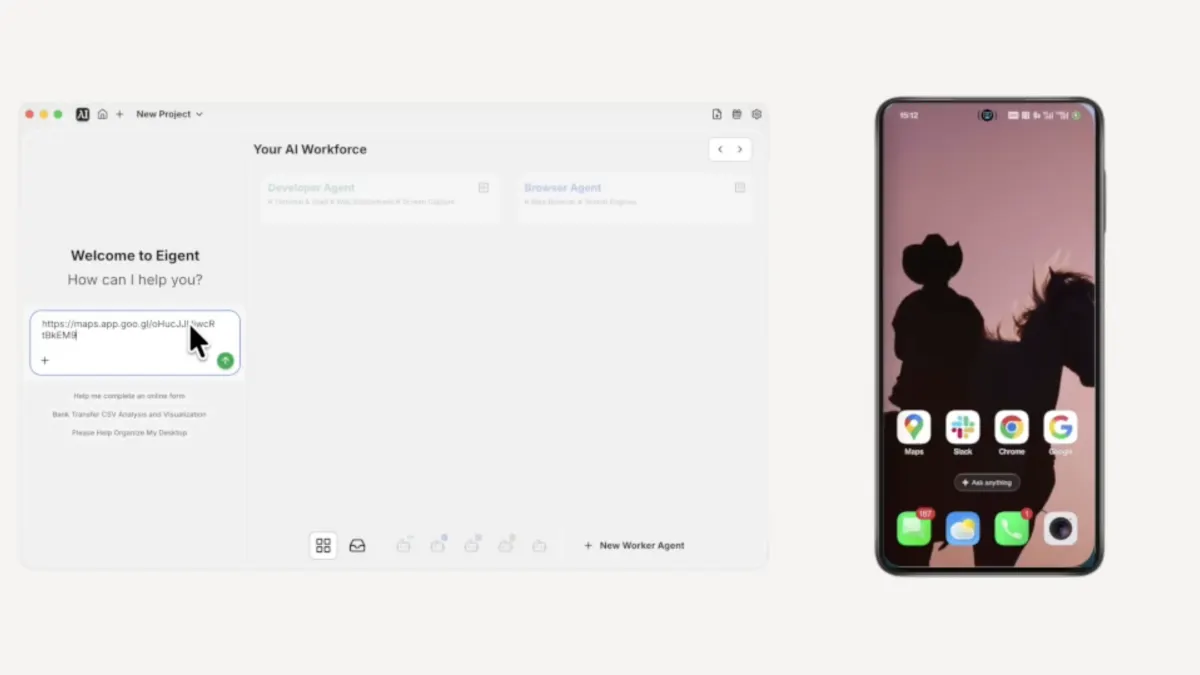
Mit der Mobile-MCP-Integration sind die Agents von Eigent nicht mehr auf deinen Desktop beschränkt. Sie können Apps auf einem verbundenen iPhone oder Android-Gerät öffnen, durch die Benutzeroberfläche navigieren, Informationen extrahieren und darauf reagieren — alles als Teil eines einzigen Workflows, den du mit einem Prompt auslöst. Keine manuellen Übergaben, kein Copy-and-Paste zwischen Bildschirmen.
Dieses Use Case zeigt genau, wie das funktioniert, anhand eines realen Beispiels: Eigent zu bitten, ein Restaurant in der Nähe zu finden und die Ergebnisse an einen Slack-Kanal zu melden — vollständig über das Telefon.
Verbinde dein Telefon mit Eigent
Bevor du auch nur einen Prompt schreibst, musst du Mobile MCP als Tool in Eigent hinzufügen.
Öffne Eigent und klicke in der oberen Navigationsleiste auf Connectors. In der linken Seitenleiste siehst du MCP & Tools — klicke darauf, wähle dann den Tab Your own MCPs und klicke auf + Add MCP Server. Füge die folgende Konfiguration ein:
{
  "mcpServers": {
    "mobile-mcp": {
      "command": "npx",
      "args": [
        "-y",
        "@mobilenext/mobile-mcp"
      ]
    }
  }
}
Klicke auf Install. Sobald es in deiner Liste Added external servers erscheint, hat Eigent Zugriff auf dein verbundenes Gerät — iPhone oder Android — und kann es als Teil jedes Workflows verwenden.
Mobile MCP unterstützt echte iOS-Geräte, den iOS Simulator, echte Android-Geräte und den Android Emulator. Das Tutorial-Video verwendet ein Android-Gerät, aber dieselbe Einrichtung funktioniert auch auf iOS.
Schreibe deinen Prompt — beschreibe einfach das Ergebnis
Du musst Eigent nicht sagen, welche App geöffnet werden soll oder wie navigiert werden muss. Beschreibe einfach, was erledigt werden soll. Hier ist der Prompt, der in diesem Beispiel verwendet wurde:
Organisiere ein Teamdinner. Alle Aufgaben müssen über mein Mobiltelefon erledigt werden. Finde für eine Gruppe von fünf Personen ein Restaurant in der Nähe mit einer Bewertung von 4,5 oder höher und sende dann den Namen des Restaurants, die Adresse und die Bewertungsdetails an den Slack-Kanal #team-dinner.
Das ist alles. Ein Prompt, zwei Geräte und zwei Apps.
Eigent teilt die Aufgabe automatisch auf
Eigent führt deinen Prompt nicht als eine große Anweisung aus. Zuerst zerlegt es ihn mithilfe von Task Splitting in einzelne Teilschritte und erkennt, welche Agents welche Teile übernehmen sollen.
In diesem Fall erkennt es, dass zwei Dinge passieren müssen: ein Restaurant über das Telefon finden und das Ergebnis anschließend über Slack auf dem Desktop melden. Es weist den ersten Teil dem Mobile Phone Agent zu und koordiniert die Übergabe automatisch. Du musst davon nichts konfigurieren.
Der Mobile Agent navigiert dein Telefon
Der Mobile Phone Agent übernimmt die Kontrolle über dein verbundenes Gerät mithilfe eines vision-based approach — er sieht den Bildschirm so, wie du ihn sehen würdest, und interagiert per Tap und Navigation statt über APIs. Das funktioniert sowohl auf iOS als auch auf Android.
Das macht der Agent auf dem Telefon:
- Öffnet Google Maps
- Bestätigt den aktuellen Standort
- Sucht nach Restaurants in der Nähe und filtert nach Bewertungen von 4,5 oder höher
- Scrollt durch die Ergebnisse und wählt eine passende Option aus
- Öffnet den Eintrag, um Namen, Adresse, Bewertung und weitere Details zu erfassen
Der Agent liest und nutzt die echte Maps-Oberfläche — Live-Daten, echte Filter, derselbe Bildschirm, den du selbst verwenden würdest.
Eigent berichtet in Slack
Sobald der Mobile Agent die benötigten Informationen hat, wechselt Eigent ohne weiteres Zutun von dir den Kontext zurück zum Desktop. Es öffnet Slack, navigiert zum richtigen Kanal und postet eine formatierte Nachricht mit allem, was es gefunden hat — Restaurantname, Sternebewertung, Adresse und einen Maps-Link.
Die gesamte geräteübergreifende Übergabe findet innerhalb eines einzigen Workflow-Laufs statt.
Prüfe den Abschlussbericht
Wenn die Aufgabe abgeschlossen ist, zeigt das Dashboard von Eigent einen Completion Report an, der zusammenfasst, was passiert ist:
- Standort auf dem Mobilgerät bestätigt
- Restaurant gefunden, das den Kriterien entspricht
- Details im Slack-Kanal gepostet
So erhältst du einen klaren Nachweis aller Aktionen, die die Agents durchgeführt haben, und kannst das Ergebnis verifizieren oder den Prompt anpassen und erneut ausführen.
Warum das wichtig ist
Die meisten Agent-Workflows enden am Desktop. Sobald eine Aufgabe etwas auf deinem Telefon erfordert, musst du es wieder selbst erledigen.
Mobile MCP beseitigt diese Grenze. Eigent kann jetzt jede iOS- oder Android-App bedienen — nicht nur die mit einer Entwickler-API — als Teil eines größeren geräteübergreifenden Workflows. In Kombination mit der Multi-Agent-Koordination von Eigent bedeutet das: Ein einzelner Prompt kann deinen Desktop, deinen Browser, deine Integrationen und jetzt auch dein Telefon abdecken.
Das Teamdinner-Beispiel ist absichtlich einfach gehalten. Dieselbe Fähigkeit gilt überall dort, wo du normalerweise mitten im Workflow zum Telefon greifen müsstest.
Was du als Nächstes ausprobieren solltest
Sobald Mobile MCP verbunden ist, probiere Prompts aus, die dein Telefon und deine Desktop-Tools verbinden:
- Suche einen Ort in Google Maps und füge ihn direkt zu Google Calendar hinzu.
- Prüfe eine mobile App auf Informationen und speichere die Ausgabe auf einer Notion-Seite.
- Nutze dein Telefon, um etwas nachzusehen, und lasse das Ergebnis in Slack zusammenfassen.
- Führe jeden Workflow aus, bei dem der letzte Schritt eine Benachrichtigung an dein Telefon ist.
- Kombiniere telefonbasierte Recherche mit einem Dokument, das vom Document Agent von Eigent generiert wurde.
Tipps für bessere Ergebnisse
Gib im Prompt explizit „use my mobile phone“ an. Wenn eine Aufgabe entweder vom Browser-Agent oder vom Mobile-Agent übernommen werden könnte, macht der Hinweis, welchen verwendet werden soll, das Routing eindeutig.
Teste die Verbindung zuerst mit einer einfachen Aufgabe. Bevor du einen komplexen Workflow startest, versuche etwas wie „öffne Google Maps auf meinem Telefon und bestätige meinen aktuellen Standort“. Wenn der Agent das kann, funktioniert die Integration.
Kombiniere mobile Schritte mit Desktop-Integrationen. Mobile MCP funktioniert am besten als ein Teil eines größeren Workflows. Kombiniere es mit Slack, Notion, Google Calendar oder jedem anderen bereits mit Eigent verbundenen Tool, um End-to-End-Automatisierungen zu bauen, die Informationen automatisch über alle deine Geräte hinweg bewegen.