
Finde jede doppelte Datei in deinem Ordner — ohne auch nur eine zu öffnen
Die meisten wissen, dass sie irgendwo doppelte Dateien haben. Kopien derselben PDF mit leicht unterschiedlichen Namen, Bilder, die zweimal aus verschiedenen Quellen gespeichert wurden, Dokumente, die über Monate hinweg exportiert und erneut exportiert wurden. Das manuelle Finden und Bereinigen bedeutet, alles zu öffnen, Größen und Inhalte zu vergleichen und zu hoffen, dass man nicht versehentlich etwas Wichtiges löscht.
Eigent scannt deinen Ordner, erkennt Duplikate über alle Vergleichsdimensionen hinweg und präsentiert die Ergebnisse gruppiert und klar gekennzeichnet — sodass du entscheiden kannst, was du behalten und was du löschen möchtest.
Den zu scannenden Ordner identifizieren
Stelle sicher, dass der Ordner, den du scannen möchtest, auf deinem Desktop oder in deinem Documents-Verzeichnis zugänglich ist. Für diesen Workflow ist das Ziel ein Ordner namens mydocs im Documents-Verzeichnis. Du kannst den Prompt an jeden beliebigen Ordnerpfad auf deinem Rechner anpassen.
Den Scan-Prompt schreiben
Sage Eigent, wonach es suchen soll:
Ich habe in meinem Documents-Verzeichnis einen Ordner namens mydocs. Bitte scanne ihn und identifiziere alle Dateien, die exakte oder nahezu exakte Duplikate sind — einschließlich solcher mit identischem Inhalt, identischer Dateigröße oder identischem Format (auch wenn sich Dateinamen oder Endungen unterscheiden). Liste sie übersichtlich auf, gruppiert nach Ähnlichkeit.
Die Schlüsselphrase hier ist „auch wenn sich Dateinamen oder Endungen unterscheiden“ — damit werden Fälle erfasst, in denen dieselbe Datei unter einem anderen Namen gespeichert wurde oder in denen eine .jpg und eine .jpeg dasselbe Bild sind.
Eigent scannt und vergleicht
Eigent analysiert den Ordner mit mehreren Vergleichsmethoden:
- Exakter Inhaltsabgleich: Dateien mit identischem Byte-für-Byte-Inhalt, unabhängig vom Dateinamen
- Abgleich der Dateigröße: Dateien mit derselben Größe (nützlich, um wahrscheinliche Duplikate schnell zu erkennen)
- Formatbasierte Gruppierung: Identifizierung von Dateien, die denselben Typ haben und anhand der Inhaltsanalyse wahrscheinlich Duplikate sind
Bei Bilddateien kann Eigent auch perceptual hashing verwenden, um nahezu identische Bilder zu erkennen, die mit leicht unterschiedlichen Komprimierungsstufen erneut gespeichert wurden.
Die gruppierten Ergebnisse prüfen
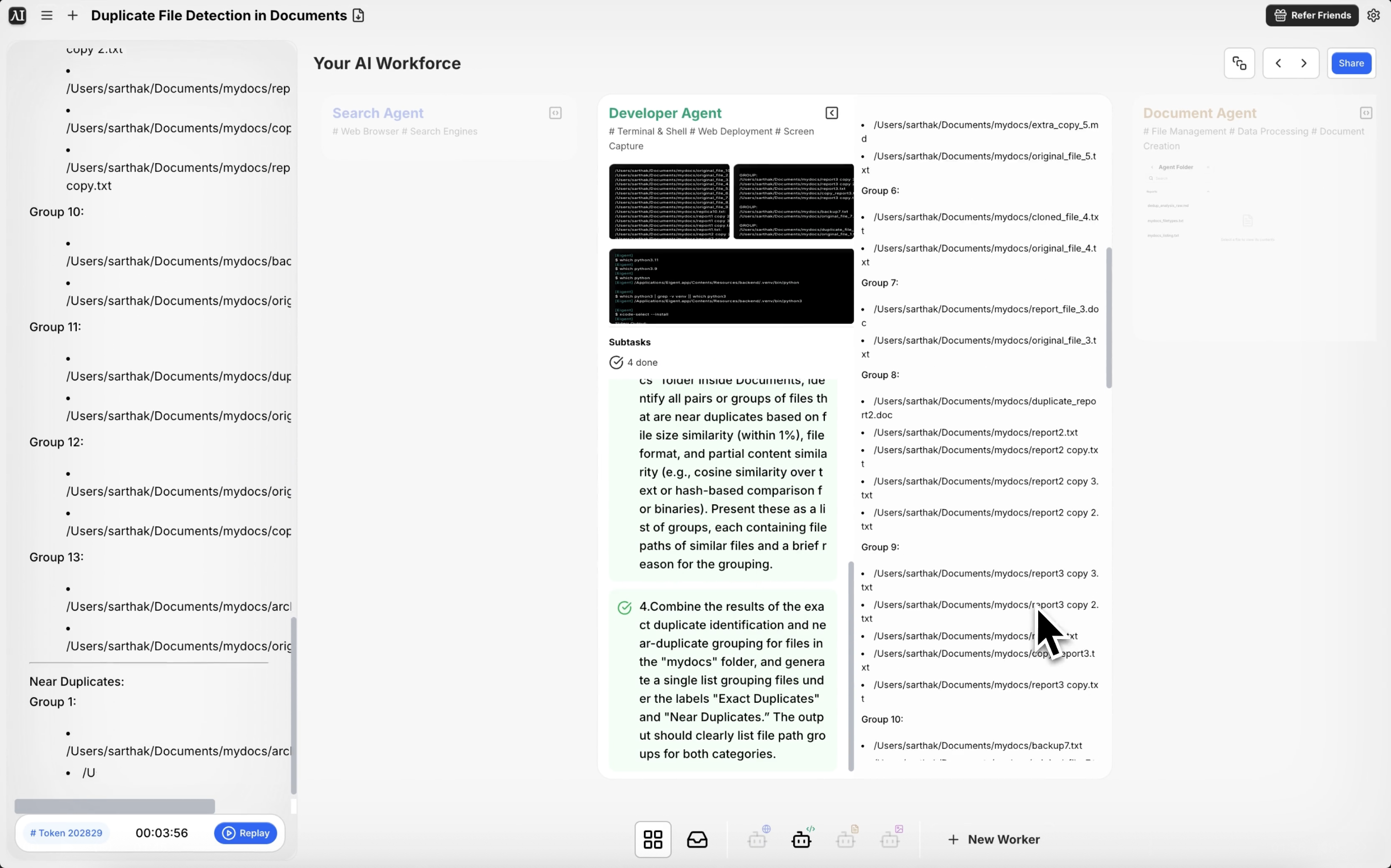
Eigent gibt eine strukturierte Liste von Duplikatgruppen zurück. Jede Gruppe zeigt alle Dateien, die wie Duplikate erscheinen, zusammen mit ihren vollständigen Pfaden und relevanten Metadaten. Auf einen Blick siehst du, welche Dateien Kopien sind und wo sie in deiner Ordnerstruktur liegen.
Entscheiden, was gelöscht werden soll
Eigent erkennt die Duplikate, überlässt die Löschentscheidung aber dir. Sobald du die Liste geprüft hast, kannst du Eigent sagen, welche entfernt werden sollen:
Behalte in jeder Gruppe die zuletzt geänderte Datei und verschiebe die anderen in einen Ordner namens "Duplicates for Review".
Lösche alle exakten Inhaltsduplikate, behalte aber eine Kopie jeder Datei.
Warum das wichtig ist
Das Aufräumen doppelter Dateien ist eine dieser Aufgaben, von denen jeder weiß, dass sie erledigt werden müssten, aber kaum jemand tatsächlich dazu kommt. Es ist mühsam, riskant (du möchtest nicht die falsche Version löschen) und per Hand schwer systematisch umzusetzen. Eigent macht es sicher, indem alles vor einer Aktion zur Prüfung angezeigt wird — und schnell, indem der Vergleich automatisch durchgeführt wird.
Was du als Nächstes ausprobieren kannst
Scanne meinen gesamten Downloads-Ordner und identifiziere alle doppelten Dateien.
Finde alle doppelten Bilder in meiner Fotos-Bibliothek und zeige mir, welche nahezu identisch sind.
Zeige mir nach dem Aufräumen der Duplikate die 10 größten verbleibenden Dateien in diesem Ordner.
Verschiebe alle doppelten Dateien in einen Ordner "Review" statt sie zu löschen.
Tipps für bessere Ergebnisse
-
Sei genau bei der Definition, was als Duplikat zählt. „Gleicher Inhalt“ ist etwas anderes als „gleicher Dateiname“. Präzisiere in deinem Prompt, welche Kriterien für deinen Anwendungsfall am wichtigsten sind.
-
Scanne immer nur einen Ordner auf einmal. Bei sehr großen Verzeichnissen mit Zehntausenden von Dateien solltest du mit einem bestimmten Unterordner beginnen, um die Ergebnisse zu validieren, bevor du alles scannst.
-
Bitte Eigent, einen Bericht zu erstellen. Das Hinzufügen von „speichere die Ergebnisse als CSV“ liefert dir eine dauerhafte Aufzeichnung dessen, was gefunden wurde, und ist nützlich, um die Bereinigung später zu prüfen.