
업무 종료 후 작업 흐름을 자동으로 처리
하루의 업무가 끝나면 늘 반복되는 일이 있습니다. 데스크톱을 정리하고, 오늘 무엇을 했는지 정리하고, 요약문을 작성하는 일입니다. 이런 작업은 가치가 낮지만 실제로는 시간이 꽤 걸립니다. 이 워크플로는 Eigent가 데스크톱 정리와 HTML 일일 보고서 생성을 병렬로 처리해, 사용자가 노트북을 닫는 동안 두 작업을 함께 완료하는 방법을 보여줍니다.
하나의 프롬프트, 동시에 실행되는 두 가지 작업
요청을 따로 나눌 필요가 없습니다. 하루를 마무리할 때 Eigent에게 이렇게 말하세요:
퇴근했습니다! 데스크톱에 있는 업무 파일을 오늘 날짜 폴더로 정리한 다음, 오늘 한 일을 요약한 HTML 일일 보고서를 작성해 주세요.
Eigent는 이 요청을 즉시 두 개의 독립적인 작업으로 분리하고 동시에 실행합니다. 하나의 에이전트는 파일 작업을, 다른 에이전트는 보고서 생성을 담당합니다.
작업 분할: Developer Agent + Document Agent
Eigent의 AI Workforce는 역량에 따라 작업을 배정합니다:
- Developer Agent — 터미널 명령을 통해 시스템 작업을 처리합니다. 날짜별 폴더를 만들고, 업무 파일을 식별한 뒤, shell 명령어로 모든 파일을 알맞은 위치로 이동합니다.
- Document Agent — 콘텐츠 생성을 처리합니다. 식별된 파일과 사용 가능한 작업 맥락을 바탕으로 HTML 일일 보고서를 생성합니다.
두 에이전트는 동시에 실행되므로, 전체 소요 시간은 두 작업 중 더 느린 작업에 걸리는 시간과 거의 같습니다. 두 작업의 합이 아닙니다.
Developer Agent가 파일을 정리합니다
Developer Agent는 데스크톱에서 업무 파일을 스캔합니다. 문서, 스프레드시트, 마크다운 노트, CSV, 프로젝트 계획서 등을 찾아 이동 대상 파일로 묶습니다. 그런 다음 다음 작업을 수행합니다:
- 오늘 날짜로 이름이 지정된 새 폴더를 만듭니다. 예:
2026-01-15 mv명령을 사용해 식별된 모든 업무 파일을 해당 폴더로 이동합니다ls -la를 실행해 작업이 올바르게 완료되었는지 확인합니다- 이동된 모든 파일 목록과 새 위치를 보고합니다
시스템 파일이나 개인 파일처럼 업무와 관련 없어 보이는 파일은 그대로 둡니다.
Document Agent가 HTML 보고서를 작성합니다
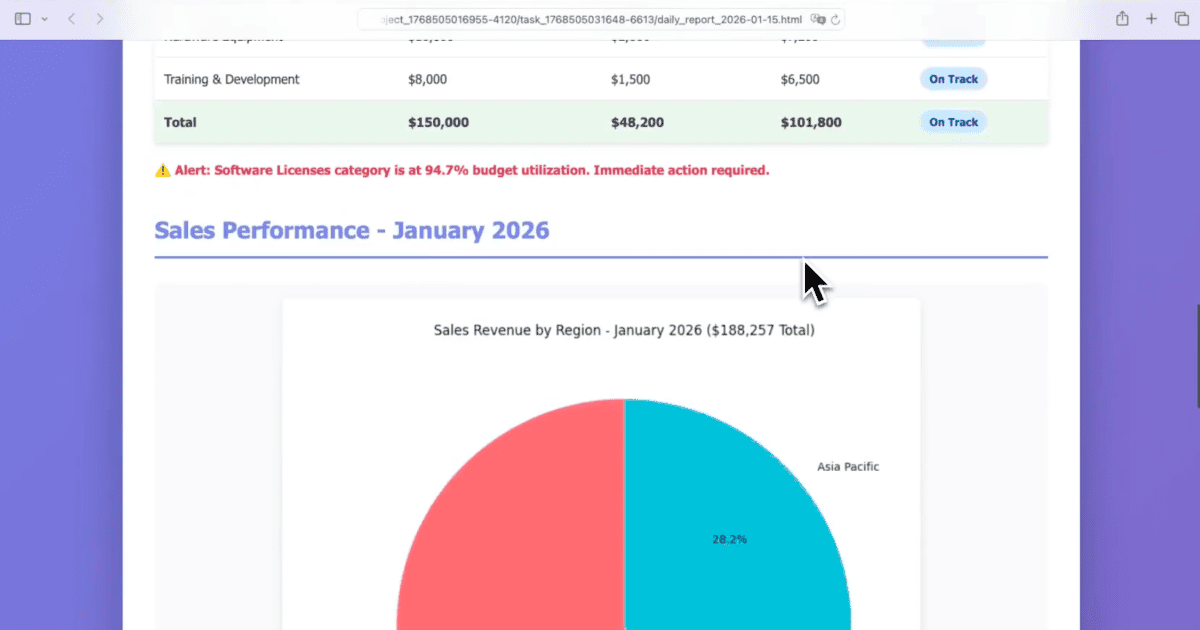
Developer Agent가 파일 시스템을 처리하는 동안, Document Agent는 독립적으로 daily_report_2026-01-15.html을 작성합니다. 이 HTML 문서는 서식이 적용된 파일로 다음 내용을 포함합니다:
- 날짜와 그날의 업무 활동 요약
- 정리된 파일의 구조화된 목록, 유형별로 분류된 내용
- 어떤 브라우저에서든 바로 열 수 있는 깔끔하고 읽기 쉬운 레이아웃
보고서는 작업 공간 디렉터리에 저장되고 작업 결과에 함께 표시됩니다.
두 작업이 함께 완료됩니다
Eigent UI에서는 두 작업이 나란히 진행되는 모습이 보이며, 두 작업 모두 같은 세션 안에서 완료됩니다. 결과적으로 날짜별 폴더에 모든 업무 파일이 정리된 깨끗한 데스크톱과, 작업 내역을 기록한 HTML 보고서를 얻게 됩니다. 앱을 오가거나 코드 한 줄도 작성할 필요가 없습니다.
워크플로 맞춤 설정하기
기본 동작은 바로 사용할 수 있지만, 원하는 방식으로 정확히 조정할 수도 있습니다:
데스크톱 파일을 오늘 날짜 폴더로 정리해 주세요. Documents, Spreadsheets, Code files용 하위 폴더를 만들어 주세요. 일일 보고서에는 "Completed Tasks"와 "Open Items" 섹션을 넣고, 제가 직접 작성할 수 있도록 빈칸도 남겨 주세요.
오늘 생성되거나 수정된 파일만 이동해 주세요. 오래된 파일은 데스크톱에 그대로 두세요.
일일 보고서를 데스크톱 대신 Google Drive 폴더에 저장해 주세요.
다음에 시도해 볼 것
이 동일한 워크플로를 매주 평일 오후 6시에 자동으로 실행해 주세요.
정리를 마친 뒤 데스크톱에서 가장 큰 파일 5개를 찾아서, 보관할지 삭제할지 물어봐 주세요.
일일 보고서를 HTML 대신 PDF로 생성해 주세요.
오늘 이동된 파일 중 내 Documents 폴더에 이미 있는 파일의 중복본이 있는지 확인해 주세요.
더 좋은 결과를 위한 팁
-
꾸준히 실행하세요. 날짜별 폴더 구조(
YYYY-MM-DD)는 날짜로 검색할 수 있는 자연스러운 아카이브를 만듭니다. 이 워크플로를 한 달 정도만 꾸준히 실행해도 데스크톱은 계속 깔끔하게 유지됩니다. -
먼저 미리보기를 요청하세요. "이동하기 전에 어떤 파일을 옮길지 먼저 보여 주세요"를 추가하면 첫 실행에서 검토 단계를 둘 수 있어, 에이전트의 분류 로직을 자동화되기 전에 확인할 수 있습니다.
-
보고서 템플릿을 확장하세요. 일일 보고서에 파일 활동 외에도 완료한 작업, 참석한 회의, 방문한 링크 등을 포함하고 싶다면, 해당 맥락을 프롬프트에 추가하거나 캘린더나 노트 앱 같은 추가 데이터 소스를 연결하세요.