
Sign Any PDF Without Leaving Your Workflow
PDF signatures used to require a specialized tool — Adobe Acrobat, DocuSign, or a paid subscription just to stamp your name on a document. Most of the time, you just want to drop an image of your signature into the right box and move on. With Eigent, you describe the task, point it to your files, and it handles the rest — including using OCR to find the signature areas automatically.
Prepare Your Files
Before you start, make sure you have two things ready on your desktop:
- The PDF file you need to sign
- Your signature image (PNG or JPG works best)
If you don't already have a signature image, you can sign on paper, take a photo, and crop it to just the signature. A transparent background produces the cleanest result.
Open Eigent and Describe the Task
Start a new session in Eigent and type your request:
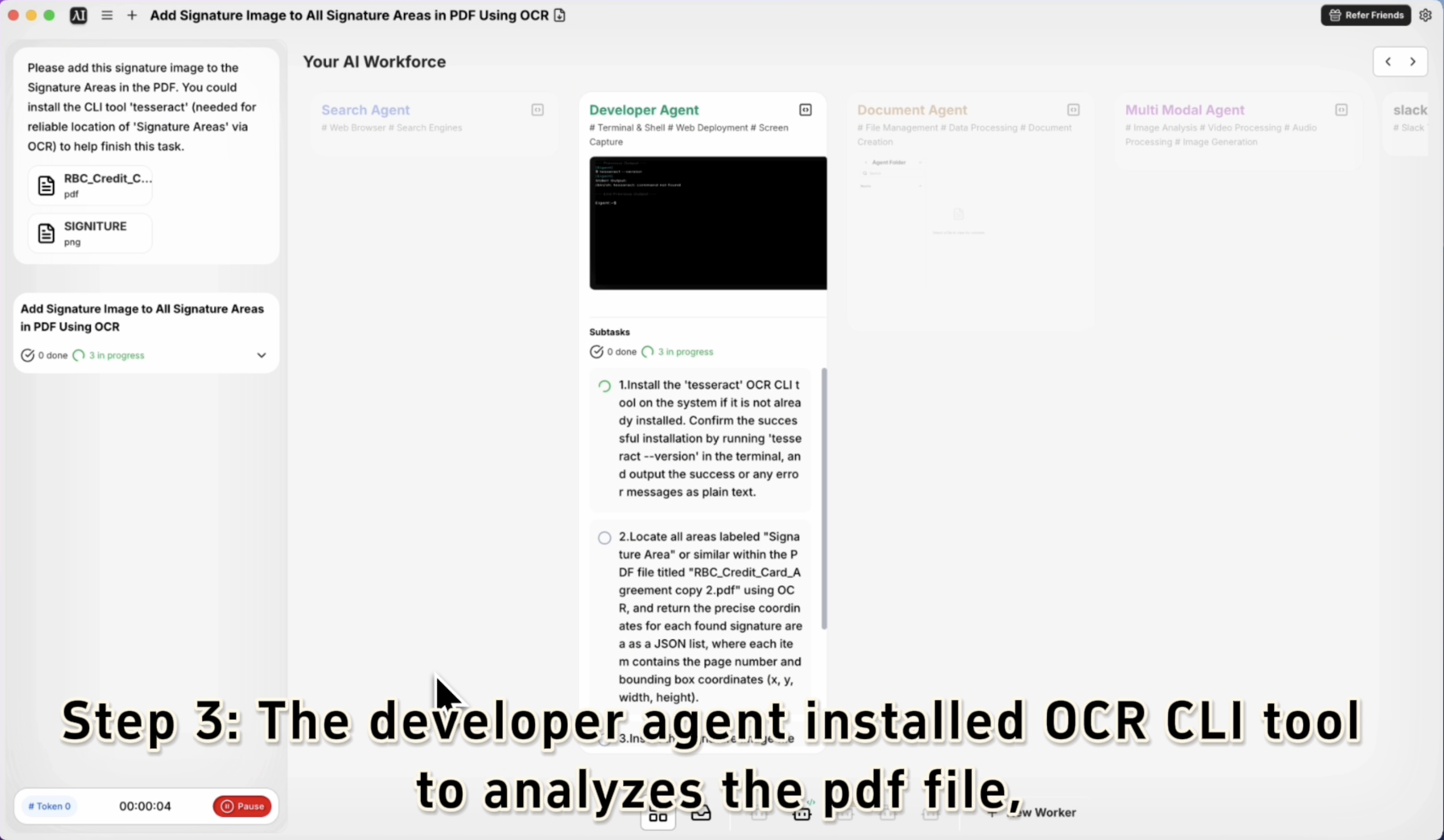
Please add this signature image to the Signature Areas in the PDF.
Drag and drop both files — the PDF and the signature image — into the Eigent chat, or reference their file paths directly. Eigent will understand which file is which based on context.
Let Eigent Locate the Signature Areas
This is where OCR comes in. Eigent can optionally install tesseract, a command-line OCR tool, to reliably detect where "Signature Area" labels appear in the PDF. If you're working with a standard form, Eigent will scan for these markers and position your signature image precisely.
If tesseract isn't already installed, Eigent will handle the installation automatically before proceeding — or you can prompt it explicitly:
You could install the CLI tool 'tesseract' to help locate the Signature Areas more reliably.
Eigent Applies the Signature
Once the signature areas are located, Eigent overlays your signature image at each marked location, resizing and positioning it to fit within the designated field. The output is a signed PDF saved to your desktop — ready to send.
No manual dragging, no resizing in a PDF editor, no subscription required.
Review the Output
Open the signed PDF to confirm everything looks right. If the positioning is off or the size needs adjustment, follow up with Eigent:
The signature on page 2 is a bit too large. Can you resize it to fit within the signature box?
Eigent will reapply the signature with the adjusted parameters.
Why This Matters
Signing PDFs is one of those tasks that should take 30 seconds but usually takes five minutes — opening the right software, figuring out the interface, resizing things manually. Eigent reduces this to a single instruction. More importantly, it handles the intelligent part: finding where the signature goes, even when the form layout isn't standard.
What to Try Next
Add my signature to all PDFs in this folder.
Place my initials at each "Initial Here" field and my full signature at the final "Signature" line.
Sign this NDA and save a copy with today's date in the filename.
Create a signed copy with today's date stamped next to each signature.
Tips for Better Results
-
Use a clean signature image. A PNG with a transparent background produces the cleanest overlay. If your image has a white background, it may cover form text beneath it.
-
Name your files clearly. If you have multiple PDFs and signature files open, give them descriptive names so Eigent can disambiguate without asking.
-
Mention tesseract for non-standard layouts. Prompting Eigent to use the OCR tool gives it more precision when label text isn't in a predictable location on the form.