

Du repérage à l’alignement de l’équipe avec un seul déclencheur
Vous découvrez quelque chose d’excitant — un outil open source, une nouvelle API, le lancement d’un concurrent — et soudain vous jonglez entre six onglets : un pour la recherche, un pour la rédaction, un pour Google Drive, un pour Calendar, un pour Gmail et un pour votre outil de suivi des tâches. Au moment où vous avez mis votre équipe au courant, une heure s’est envolée et vous avez à peine effleuré la recherche elle-même.
Ce cas d’usage est l’antidote. Vous configurez un déclencheur unique dans Eigent, et il gère toute la chaîne : recherche approfondie, création du rapport, partage du fichier, planification des tâches, programmation de la réunion et notification de l’équipe. Voici comment cela fonctionne avec GPT5.4 et le Google Workspace CLI skill.
Configurez GPT5.4 et le Google Workspace CLI Skill
Ce workflow s’appuie sur GPT5.4 pour la recherche approfondie et le raisonnement. Rendez-vous dans Settings → Agents → Model et sélectionnez GPT5.4 comme modèle actif.
Ensuite, installez le Google Workspace CLI skill — un package de skills qui donne à Eigent un accès direct à Google Docs, Drive, Tasks, Calendar et Gmail via la ligne de commande. Commencez par suivre les instructions de configuration du Google Workspace CLI repo pour installer et authentifier le CLI sur votre machine :
npm install -g @googleworkspace/cli
gws auth setup
gws auth login
Une fois le CLI installé et authentifié, rendez-vous dans Settings → Agents → Skills et installez le package Google Workspace CLI skill. Avec le CLI et le skill en place, l’ensemble de votre Google Workspace devient accessible de manière programmatique.
Créez un déclencheur unique
Au lieu de taper une invite et d’attendre, utilisez la fonctionnalité de déclencheur d’Eigent pour lancer le workflow. Un déclencheur unique s’exécute une fois puis se désactive — parfait pour les tâches ponctuelles que vous souhaitez confier à Eigent de manière autonome sans rester dans la boucle.
Allez dans Settings → Triggers, créez un nouveau déclencheur, définissez-le sur One-Time, puis collez l’invite :
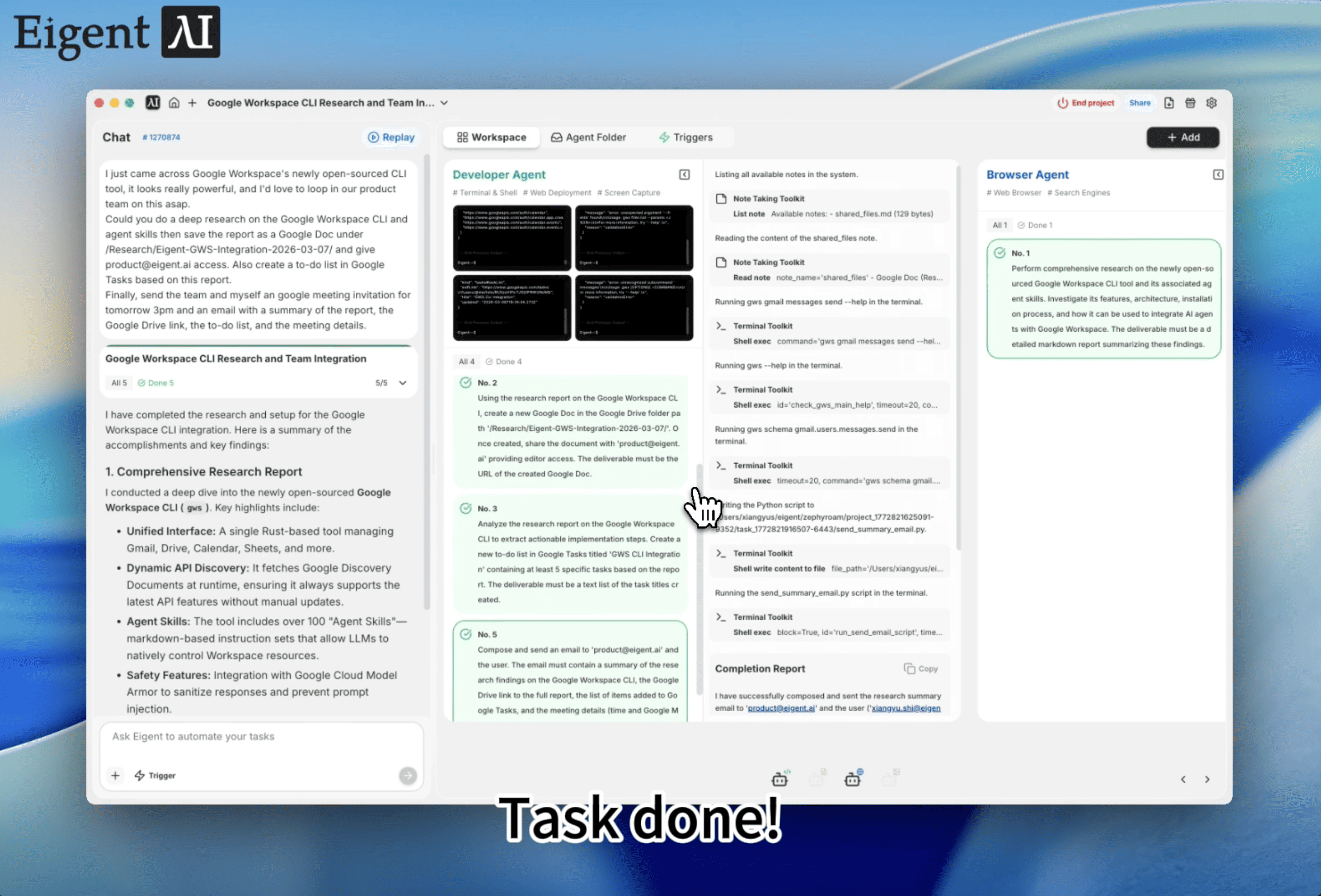
Je viens de tomber sur l’outil CLI récemment open-sourcé de Google Workspace, il a l’air vraiment puissant, et j’aimerais beaucoup intégrer notre équipe produit au plus vite. Peux-tu effectuer une recherche approfondie sur Google Workspace CLI et les agent skills, puis enregistrer le rapport sous forme de Google Doc dans /Research/Eigent-GWS-Integration-2026-03-07/ et donner l’accès à product@eigent.ai. Crée aussi une liste de tâches dans Google Tasks à partir de ce rapport. Enfin, envoie à l’équipe une invitation Google Meeting dans Google Calendar pour demain à 15h, ainsi qu’un e-mail contenant un résumé du rapport, le lien Google Drive, la liste de tâches et les détails de la réunion.
Une fois le déclencheur enregistré, Eigent le prend en charge et commence l’exécution — pas besoin de rester à votre bureau. Le déclencheur s’exécute une fois, lance le workflow complet, puis se désactive. Cinq résultats coordonnés, zéro surveillance.
Laissez Eigent faire le travail
Eigent commence par utiliser GPT5.4 pour mener une recherche approfondie sur Google Workspace CLI et ses capacités de skill pour agent. Il ne s’agit pas d’une simple recherche web rapide — c’est une investigation structurée qui couvre l’architecture, les API prises en charge, les modèles d’intégration, le modèle de sécurité et sa comparaison avec les outils existants.
Une fois la recherche terminée, Eigent appelle le Google Workspace CLI skill pour créer un nouveau Google Doc contenant le rapport complet, l’enregistre dans le chemin de dossier spécifié dans votre Google Drive et le partage avec votre équipe. Il extrait ensuite les prochaines étapes actionnables dans une liste de tâches Google Tasks, crée un événement Google Calendar avec un lien Meet pour le lendemain à 15h, puis rédige et envoie un e-mail récapitulatif reliant tout : les résultats de la recherche, le lien Drive, la liste de tâches et les détails de la réunion. Un seul e-mail, tout le contexte dont votre équipe a besoin pour arriver préparée.
Pourquoi c’est important
Ce workflow démontre quelque chose de puissant dans la combinaison de trois capacités d’Eigent : un modèle de pointe comme GPT5.4 pour le raisonnement, le Google Workspace CLI comme skill pour l’exécution, et les déclencheurs uniques pour un démarrage autonome. Au lieu de passer d’une application à l’autre et de faire circuler manuellement les informations entre les outils, vous configurez un déclencheur, vous partez, puis vous revenez avec un résultat entièrement coordonné.
L’idée clé : le Google Workspace CLI skill transforme toute la suite de productivité de Google en infrastructure accessible aux agents, et les déclencheurs vous permettent de lancer des workflows complexes sans rester dans la boucle. Docs, Drive, Tasks, Calendar et Gmail deviennent tous des points de terminaison programmables qu’Eigent peut enchaîner — déclenchés une seule fois et exécutés de bout en bout.
Que tester ensuite
Une fois votre premier workflow de bout en bout exécuté, essayez de l’étendre avec des déclencheurs de suivi :
Recherche les pages de tarification de nos trois principaux concurrents et enregistre un rapport comparatif dans Google Drive. Crée des tâches pour l’équipe produit et planifie un point de stratégie pour vendredi.
Je viens de lire sur [new API/tool]. Fais une recherche approfondie, rédige une page de synthèse pour l’équipe d’ingénierie, partage-la dans Drive et envoie un e-mail à eng@company.com avec les prochaines étapes et une invitation à une réunion.
Trouve les derniers benchmarks pour [technology] et crée un résumé dans un Google Doc. Ajoute des tâches de suivi et invite les parties prenantes concernées à une réunion de revue la semaine prochaine.
Chacun de ces exemples exploite la même configuration GPT5.4 + Google Workspace CLI skill — aucune configuration supplémentaire requise.
Conseils pour de meilleurs résultats
-
Soyez précis sur les livrables. Indiquez le chemin du dossier pour le rapport, qui doit y avoir accès et l’heure de la réunion. Plus votre invite de déclenchement est précise, plus les résultats seront alignés.
-
Utilisez les déclencheurs uniques pour les workflows ponctuels. Pour les tâches récurrentes de recherche ou de coordination, envisagez plutôt des déclencheurs planifiés.
-
Authentifiez le CLI une seule fois. Le Google Workspace CLI skill repose sur votre authentification locale
gws. Exécutezgws auth loginavant de configurer les déclencheurs afin qu’Eigent puisse accéder à votre Workspace sans interruption.