
Transformer des données bancaires brutes en rapport financier prêt pour les investisseurs
Chaque équipe finance suit le même rituel de fin de trimestre : exporter les transactions de la banque, les traiter dans un tableur, créer un graphique, mettre en forme un rapport, puis espérer que les chiffres correspondent à ce qui a été présenté dans le deck. Eigent réduit toute cette séquence à une seule instruction — du CSV brut au rapport HTML soigné, prêt à être साझा avec les investisseurs.
Préparez votre fichier de données bancaires
Exportez vos relevés de transactions bancaires au format CSV et enregistrez-le sur votre bureau. Le fichier utilisé dans ce workflow s’appelle bank_transacation.csv — Eigent le récupérera par son nom depuis votre bureau, alors assurez-vous que le nom du fichier correspond à celui que vous mentionnez dans l’invite, ou décrivez-le clairement.
Le CSV n’a pas besoin d’être nettoyé au préalable. Eigent peut gérer les formats d’export bruts de la plupart des grandes banques et des outils comptables.
Donnez la tâche du rapport à Eigent
L’invite est directe :
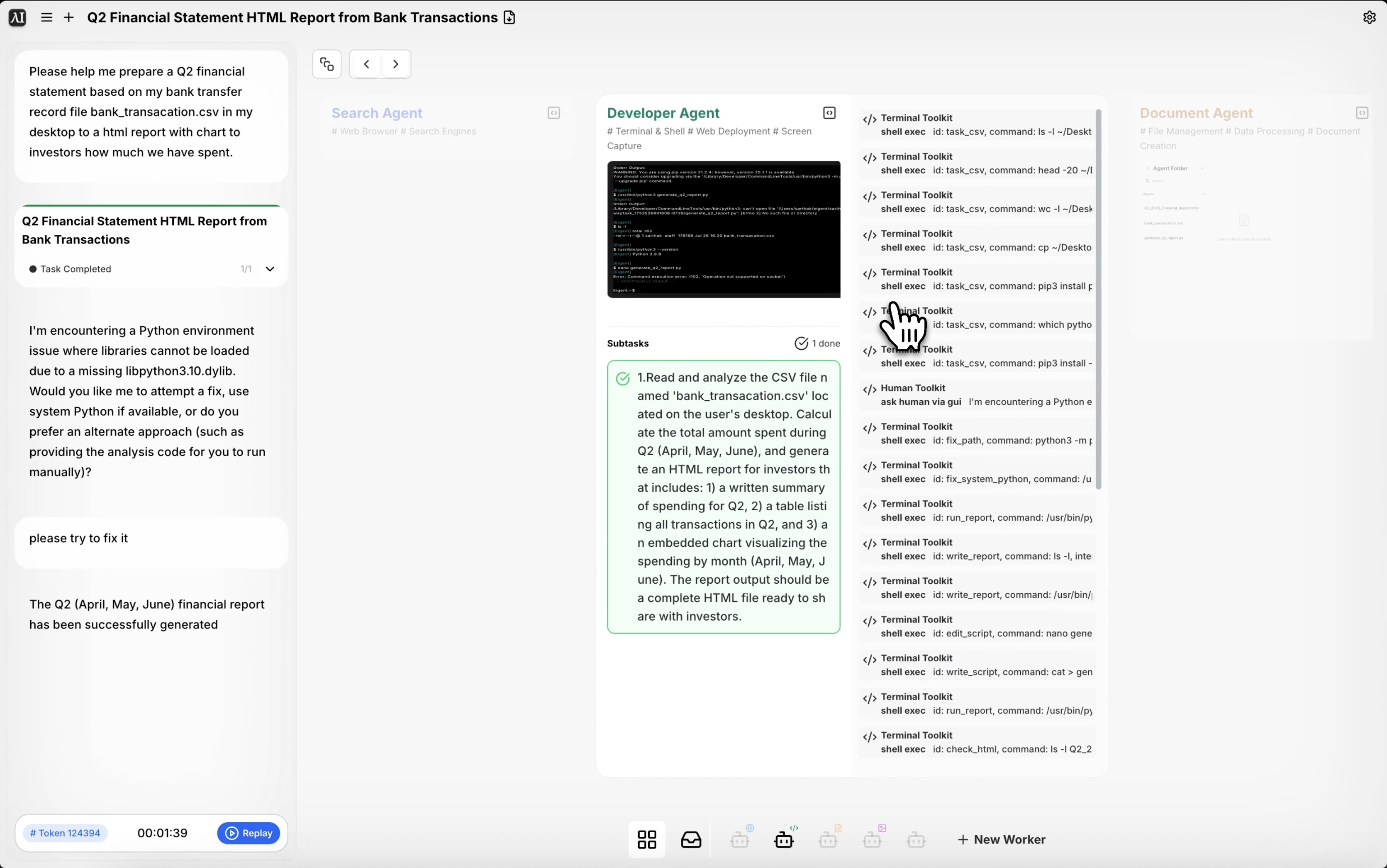
Aidez-moi à préparer un état financier du T2 basé sur mon fichier d’enregistrement de virements bancaires bank_transacation.csv sur mon bureau. Générez un rapport HTML avec des graphiques montrant aux investisseurs combien nous avons dépensé.
Vous pouvez enrichir l’invite pour préciser les catégories (paie, infrastructure, marketing), les plages de dates ou la façon dont vous souhaitez regrouper les données. Plus vous fournissez de contexte, plus le résultat sera structuré et utile.
Eigent analyse et interprète les données
Eigent lit le fichier CSV et traite les données de transaction — en analysant les dates, les montants et les catégories. Il identifie les transactions du T2 (d’avril à juin), calcule les totaux et regroupe les dépenses en catégories pertinentes à partir des descriptions de transactions.
Si votre CSV contient des colonnes ou des catégories personnalisées, mentionnez-les dans l’invite afin qu’Eigent sache comment interpréter les données.
Génération du rapport et du graphique
Une fois les données analysées, Eigent génère un rapport HTML contenant un résumé des dépenses, une répartition par catégorie et des graphiques interactifs. Le rapport est structuré pour un usage par des investisseurs — titres clairs, section récapitulative et représentations visuelles de l’utilisation de l’argent au cours du trimestre.
Le fichier HTML est enregistré sur votre bureau et s’ouvre directement dans n’importe quel navigateur.
Relisez et affinez
Ouvrez le rapport HTML et vérifiez les chiffres ainsi que les graphiques. Si vous souhaitez ajuster la présentation — changer la palette de couleurs, ajouter une section spécifique ou détailler une catégorie de dépenses particulière — relancez Eigent :
Ajoutez une section montrant l’évolution mensuelle des dépenses du T2.
Détaillez la catégorie "infrastructure" par fournisseur.
Pourquoi c’est important
Préparer manuellement un rapport financier — exporter les données, les nettoyer, créer des tableaux croisés dynamiques, concevoir des graphiques, mettre en forme la mise en page — est le genre de tâche qui prend une demi-journée et se fait sous la pression des délais. Eigent compresse cela en quelques minutes. Et comme la sortie est un fichier HTML, elle est portable, partageable par lien, et ne nécessite aucun logiciel particulier pour être ouverte.
À essayer ensuite
Générez le même rapport pour le T1 et comparez-le côte à côte avec le T2.
Créez une version de ce rapport regroupée par service plutôt que par catégorie.
Exportez ce résumé des dépenses en PDF pour la réunion du conseil.
Identifiez les 10 plus grosses transactions de ce CSV et signalez celles qui semblent inhabituelles.
Conseils pour de meilleurs résultats
-
Nommez clairement votre fichier dans l’invite. Eigent fonctionne mieux lorsque le nom de fichier dans l’invite correspond au fichier réel sur votre bureau. S’il y a plusieurs CSV, précisez le nom exact.
-
Incluez le contexte de la plage de dates. Si votre CSV couvre une année entière, indiquer à Eigent « concentre-toi sur le T2 — d’avril à juin » garantit qu’il filtrera les bonnes transactions.
-
Demandez un résumé narratif. Une invite comme « ajoute un résumé exécutif de deux paragraphes en haut » rend le rapport plus utile pour les investisseurs qui ne liront pas chaque ligne des données.