
Automatyzuj zamówienia zakupu SAP bez dotykania interfejsu
Korporacyjne systemy ERP, takie jak SAP S/4HANA, są potężne, ale ręczna nawigacja po nich jest powolna i podatna na błędy. Utworzenie zamówienia zakupu wymaga przejścia do właściwego modułu, uzupełnienia poprawnych pól we właściwej kolejności i zaimportowania pozycji z istniejących dokumentów — wszystko to przed wysłaniem. Jedno błędne pole i zamówienie nie przejdzie walidacji.
Eigent może poruszać się po interfejsie przeglądarkowym SAP tak jak człowiek, wykonując precyzyjny zestaw kroków od początku do końca — bez potrzeby samodzielnego otwierania ERP.
Skonfiguruj dostęp do SAP przez przeglądarkę
Upewnij się, że Twoja instancja SAP S/4HANA jest dostępna w przeglądarce i że jesteś zalogowany(a) (lub że Eigent ma potrzebne dane uwierzytelniające). W tym workflow docelowy adres URL to:
https://my426318.s4hana.cloud.sap/ui?sap-language=EN&help-mixedLanguages=false&help-autoStartTour=PR_28A0E50CC77DAF91#Shell-home
Jeśli pracujesz na własnej instancji SAP, w promptcie podmień adres URL swojej organizacji.
Przekaż Eigent pełne zadanie zakupowe
Ten workflow jest szczegółowy, więc Twój prompt też powinien taki być. Oto ten użyty w tym przypadku:
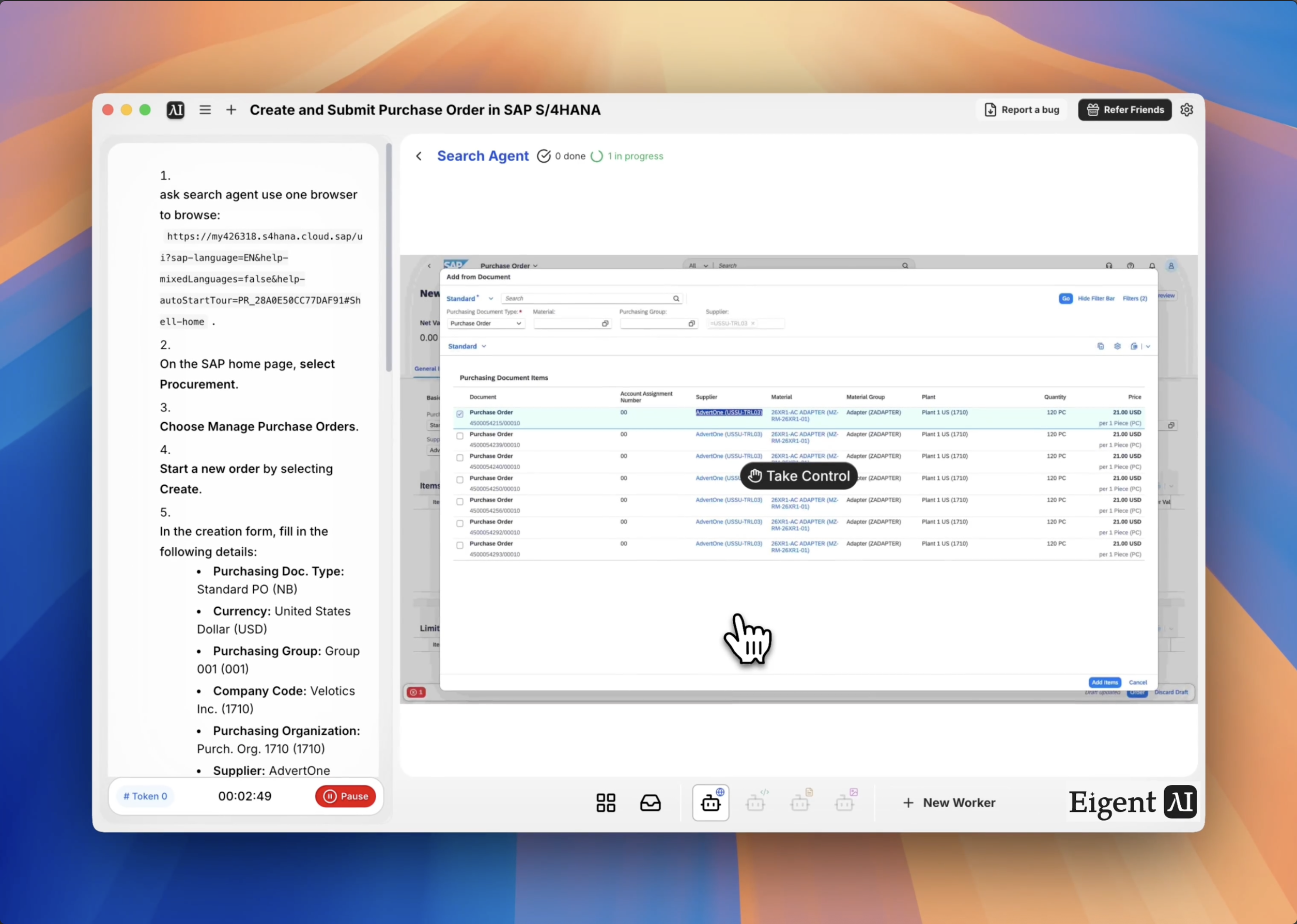
Otwórz przeglądarkę i przejdź do strony głównej SAP. Wybierz Procurement → Manage Purchase Orders → Create. Uzupełnij: Purchasing Doc. Type: Standard PO (NB), Currency: USD, Purchasing Group: Group 001 (001), Company Code: Velotics Inc. (1710), Purchasing Organization: Purch. Org. 1710 (1710), Supplier: AdvertOne (USSU-TRL03). W tabeli Items wybierz Add from Document, uruchom wyszukiwanie, wybierając Go, i zaznacz pole przy pierwszym zamówieniu zakupu w wynikach. Potwierdź przyciskiem Add Items, a następnie wyślij przyciskiem Order.
Im bardziej precyzyjne instrukcje, tym pewniej Eigent może wykonać workflow bez potrzeby zatrzymywania się i zadawania pytań.
Eigent porusza się po interfejsie SAP
Agent przeglądarkowy Eigent otwiera SAP w kontrolowanej sesji i realizuje Twoje instrukcje krok po kroku — przechodząc przez menu, wypełniając pola formularza, uruchamiając wyszukiwania i wybierając rekordy. Działa dokładnie jak przeszkolony użytkownik SAP, tylko bez ręcznej pracy. Możesz obserwować sesję przeglądarki w czasie rzeczywistym albo pozwolić jej działać w tle.
Import pozycji z istniejącego dokumentu
Jedną z bardziej złożonych części tworzenia zamówienia zakupu w SAP jest pobieranie pozycji z wcześniejszego dokumentu. Eigent obsługuje to, wybierając "Add from Document" w tabeli Items, uruchamiając okno dialogowe wyszukiwania, wybierając właściwe zamówienie zakupu z listy wyników i potwierdzając wybór, aby uzupełnić pozycje. Eliminuje to ręczne przepisywanie i ryzyko błędów transkrypcji między polami.
Wyślij i potwierdź
Gdy wszystkie pola zostaną uzupełnione, Eigent wybiera Order, aby wysłać zamówienie zakupu. Zapisuje ekran potwierdzenia i zwraca numer PO, abyś miał(a) odniesienie do swoich zapisów.
Dlaczego to ważne
Workflowy SAP są dużym pochłaniaczem czasu dla zespołów zakupowych i finansowych. Pojedyncze utworzenie PO, które ręcznie zajmuje 10–15 minut, może zostać wykonane w kilka sekund z Eigent — z zachowaniem spójnej dokładności w każdym polu. A ponieważ Eigent działa zgodnie z jednoznacznymi instrukcjami, workflow jest audytowalny: zawsze wiesz, co zostało wpisane i dlaczego.
Co przetestować dalej
Utwórz pięć zamówień zakupu na podstawie danych zamówienia w tym arkuszu kalkulacyjnym.
Sprawdź status wszystkich otwartych zamówień zakupu i wypisz te, których termin dostawy minął.
Zatwierdź przyjęcie towaru dla numeru PO 4500000123.
Wygeneruj raport podsumowujący wszystkie zamówienia zakupu utworzone w tym miesiącu.
Wskazówki dla lepszych wyników
-
Używaj dokładnych wartości pól SAP. SAP jest restrykcyjny w przypadku wartości list rozwijanych i kodów. Podawaj dokładny tekst wyświetlany (np. "Standard PO (NB)", a nie tylko "Standard PO"), aby uniknąć błędów walidacji.
-
Sprawdź stabilność sesji przeglądarki. Sesje SAP mogą wygasać. Jeśli uruchamiasz dłuższy workflow, upewnij się przed startem, że limit czasu sesji jest ustawiony odpowiednio.
-
Dodaj obsługę błędów do promptu. Możesz powiedzieć Eigent: "Jeśli jakikolwiek krok się nie powiedzie, zatrzymaj się i powiedz mi, co poszło nie tak, zanim pójdziesz dalej." To zapobiega niezauważeniu częściowo wykonanych wysyłek.