
Nebius Token Factory
This guide walks you through setting up your Nebius Token Factory API key within Eigent to enable Nebius models for your AI workforce.
Prerequisites
- Get your API Key: If you haven't already, generate a key in the Nebius Token Factory console.
- Copy the Key: Keep your API key ready to paste.
Configuration steps
1. Access application settings
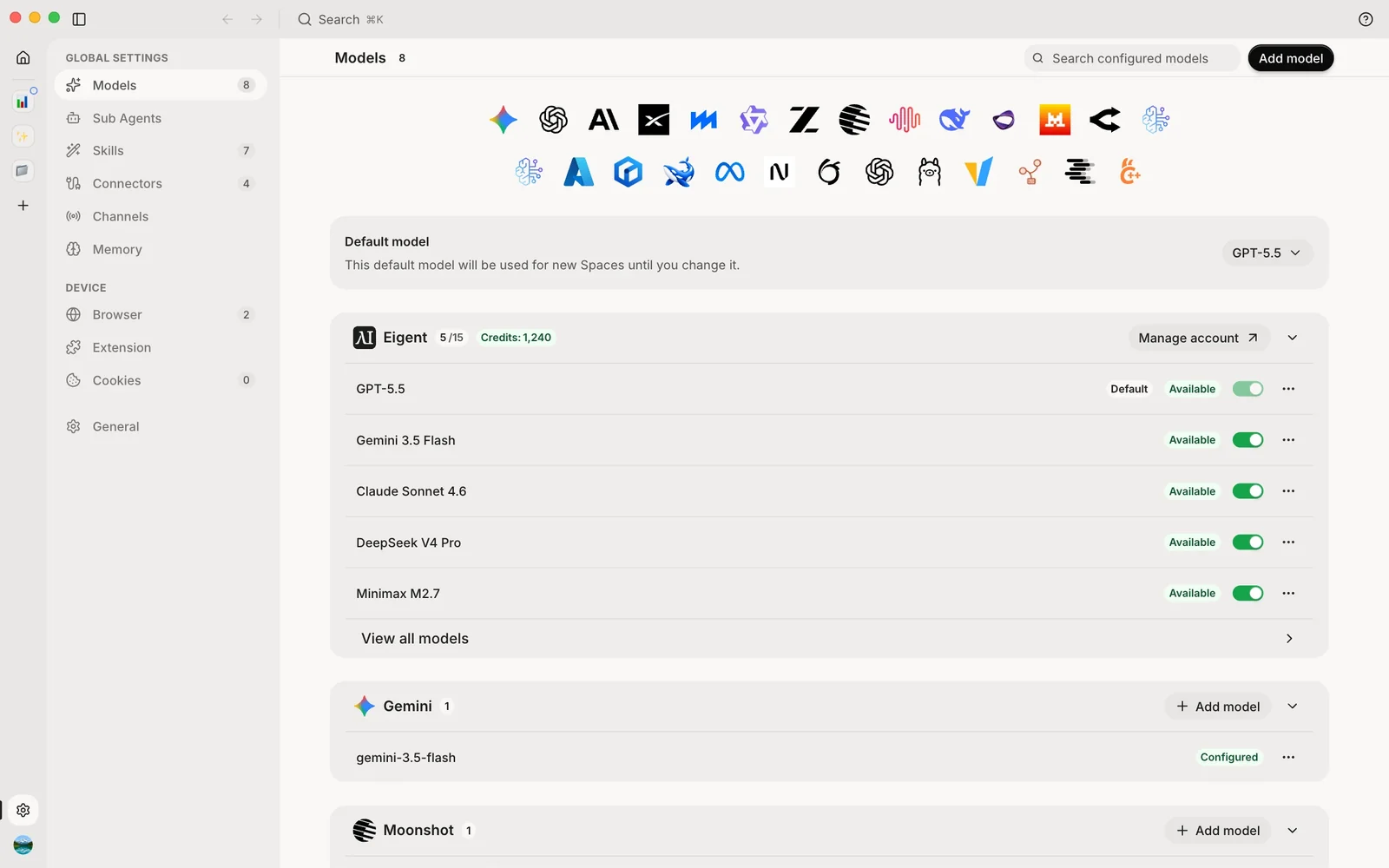
- Launch Eigent and navigate to the Home Page.
- Open Settings (the gear at the bottom of the left rail), then select Models.
2. Locate model configuration
- Select the Nebius Token Factory icon in the row of providers at the top of the page, or select Add model and choose Nebius Token Factory.
3. Enter API details
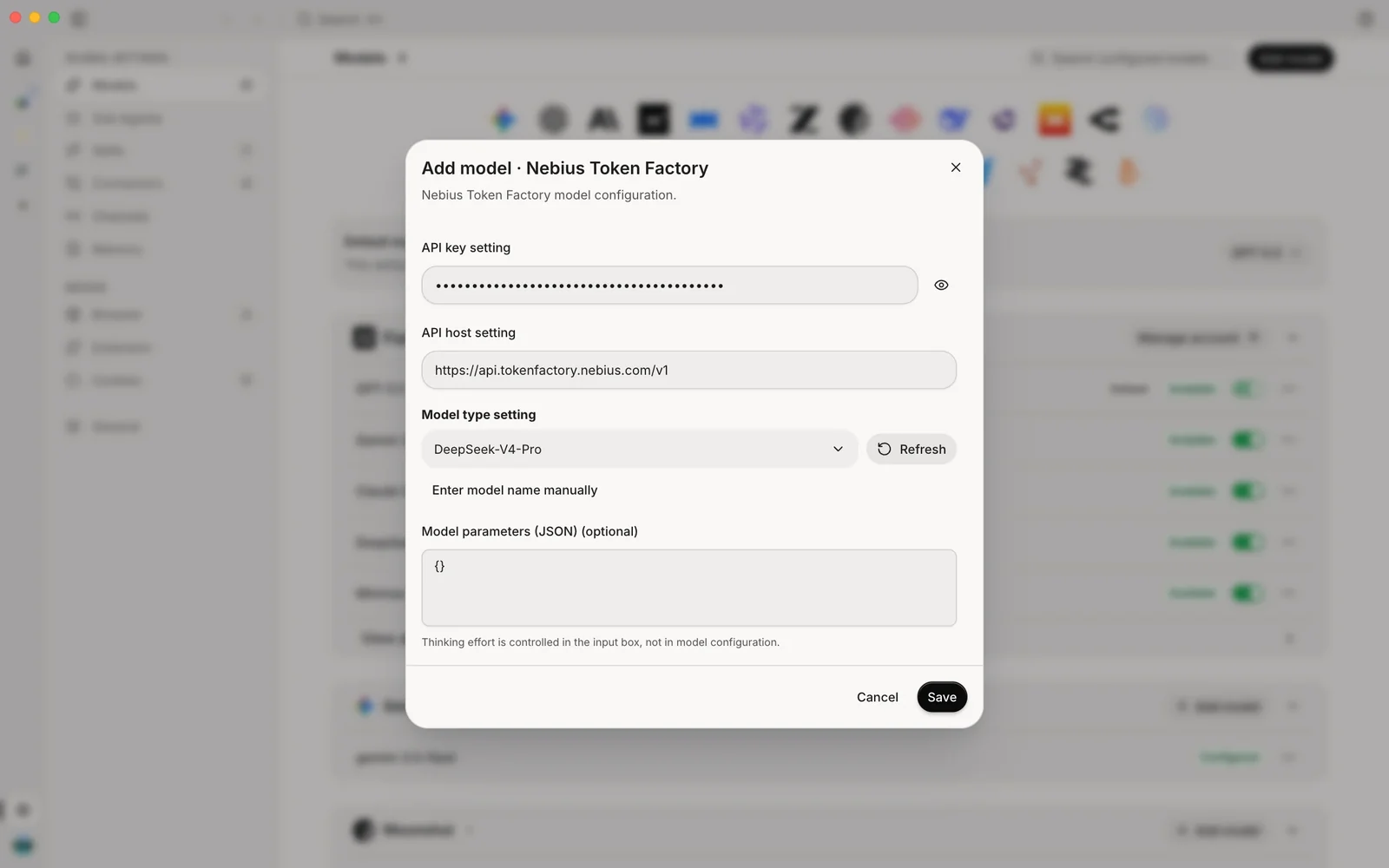
In the Add model · Nebius Token Factory dialog, fill in the following fields:
- API Key: Paste the key you generated from the Nebius Token Factory console.
- API Host: Enter the API endpoint host.
- Default:
https://api.tokenfactory.nebius.com/v1
- Default:
- Model Type: Click Refresh to load available models, then select the
model you wish to use from the dropdown.
- Example:
DeepSeek-V4-Pro
- Example:
- Save: Click the Save button to apply your changes.
4. Set as default & verify
- Once saved, the model is listed under Nebius Token Factory on the Models page. To make it the default, choose it under Default model, or select Set as default in the model's ⋯ menu.
- You are ready to go. Your Eigent agents can now utilize Nebius Token Factory models.