

logo
  • 환경
  • 엔터프라이즈
  • 요금제
TeamApr 10, 2026

Eigent Mobile MCP: Phone Automation for AI Agents

Tao SunTao Sun
·
Douglas LaiDouglas Lai
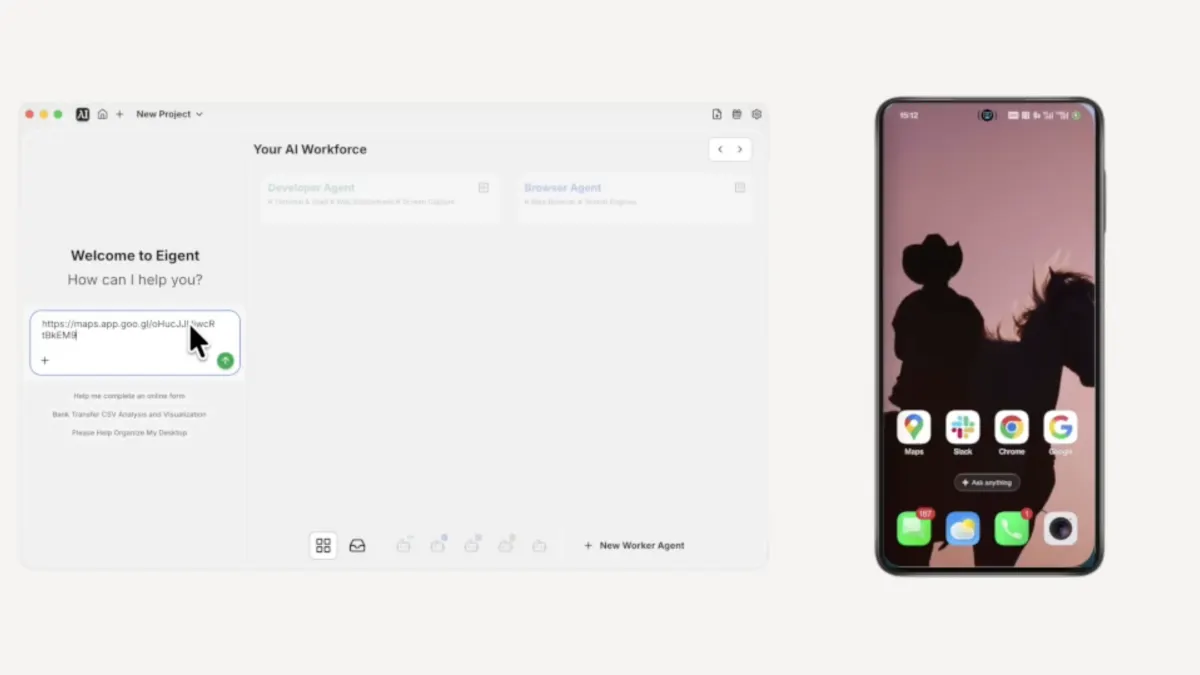
Eigent Mobile MCP — phone automation with AI agents
Automate Everything with
AI Workforce on Desktop
Download Eigent

Category: Productivity · Mobile · Integration


Mobile MCP brings iPhone and Android apps into the same multi-agent workflows you already run in Eigent. Instead of stopping at the desktop, your AI coworkers can open apps on a connected device, read the screen, tap through UIs, and pass results to tools like Slack—with task splitting and a Mobile Phone Agent handling the phone side. This page walks through a concrete mobile automation example: find a nearby restaurant on the device, then report to a Slack channel, all from one prompt.

Eigent can now control your phone.

With the Mobile MCP integration, Eigent's agents aren't limited to your desktop anymore. They can open apps on a connected iPhone or Android device, navigate the UI, extract information, and act on it — all as part of a single workflow you trigger with one prompt. No manual handoffs, no copy-pasting between screens.

This use case walks through exactly how that works, using a real example: asking Eigent to find a nearby restaurant and report back to a Slack channel — entirely through the phone.


1Connect Your Phone to Eigent

Before you write a single prompt, you need to add Mobile MCP as a tool inside Eigent.

Open Eigent and click Connectors in the top navigation bar. You'll see MCP & Tools in the left sidebar — click it, then select the Your own MCPs tab and click + Add MCP Server. Paste in the following configuration:

{
  "mcpServers": {
    "mobile-mcp": {
      "command": "npx",
      "args": [
        "-y",
        "@mobilenext/mobile-mcp"
      ]
    }
  }
}

Click Install. Once it appears in your Added external servers list, Eigent has access to your connected device — iPhone or Android — and is ready to use it as part of any workflow.

Mobile MCP supports iOS real devices, iOS Simulator, Android real devices, and Android Emulator. The tutorial video uses an Android device, but the same setup works on iOS.


2Write Your Prompt — Just Describe the Outcome

You don't need to tell Eigent which app to open or how to navigate it. Just describe what you want done. Here's the prompt used in this example:

Arrange a team dinner. All tasks must be completed using my mobile phone. For a group of five people, find a nearby restaurant rated 4.5 or higher, then send the restaurant name, address, and rating details to the #team-dinner Slack channel.

That's it. One prompt spanning two devices and two apps.


3Eigent Splits the Task Automatically

Eigent doesn't execute your prompt as one big instruction. It first breaks it down through Task Splitting — identifying the distinct sub-tasks and which agents should handle them.

In this case it recognises two things need to happen: find a restaurant using the phone, then report the result via Slack on the desktop. It assigns the first to the Mobile Phone Agent and coordinates the handoff automatically. You don't configure any of this.


4The Mobile Agent Navigates Your Phone

The Mobile Phone Agent takes control of your connected device using a vision-based approach — it sees the screen the same way you would, and interacts with it through taps and navigation rather than relying on APIs. This works on both iOS and Android.

Here's what it does on the phone:

  • Opens Google Maps
  • Confirms the current location
  • Searches for nearby restaurants and filters for those rated 4.5 or higher
  • Scrolls through the results and selects a qualifying option
  • Taps into the listing to collect the name, address, rating, and other details

The agent is reading and interacting with the real Maps interface — live data, real filters, the same screen you'd use yourself.


5Eigent Reports to Slack

Once the mobile agent has what it needs, Eigent switches context to the desktop without any input from you. It opens Slack, navigates to the correct channel, and posts a formatted message with everything it found — restaurant name, star rating, address, and a Maps link.

The whole cross-device handoff happens inside a single workflow run.


6Review the Completion Report

When the task finishes, Eigent's dashboard displays a Completion Report summarising what happened:

  • Location confirmed on the mobile device
  • Restaurant found matching the criteria
  • Details posted to the Slack channel

This gives you a clear record of every action the agents took, so you can verify the result or adjust the prompt and rerun it.


7Why This Matters

Most agent workflows stop at the desktop. The moment a task requires something on your phone, you're back to doing it yourself.

Mobile MCP removes that boundary. Eigent can now operate any iOS or Android app — not just the ones with a developer API — as part of a larger cross-device workflow. Combined with Eigent's Multi-Agent coordination, this means a single prompt can reach across your desktop, your browser, your integrations, and now your phone.

The team dinner example is deliberately simple. The same capability applies anywhere you'd normally have to pick up your phone mid-workflow.


8What to Try Next

Once Mobile MCP is connected, try prompts that span your phone and your desktop tools:

  • Search for a venue on Google Maps and add it directly to Google Calendar.
  • Check a mobile-only app for information and save the output to a Notion page.
  • Use your phone to look something up and have the result summarised in Slack.
  • Run any workflow where the final step is a notification sent to your phone.
  • Combine phone-based research with a document generated by Eigent's Document Agent.

9Tips for Better Results

Specify "use my mobile phone" in the prompt. When a task could be handled by either the browser agent or the mobile agent, telling Eigent which to use makes the routing unambiguous.

Test the connection with a simple task first. Before running a complex workflow, try something like "open Google Maps on my phone and confirm my current location." If the agent can do that, the integration is working.

Pair mobile steps with desktop integrations. Mobile MCP works best as one part of a larger workflow. Combine it with Slack, Notion, Google Calendar, or any other tool already connected to Eigent to build end-to-end automations that move information across all your devices automatically.

Other use cases

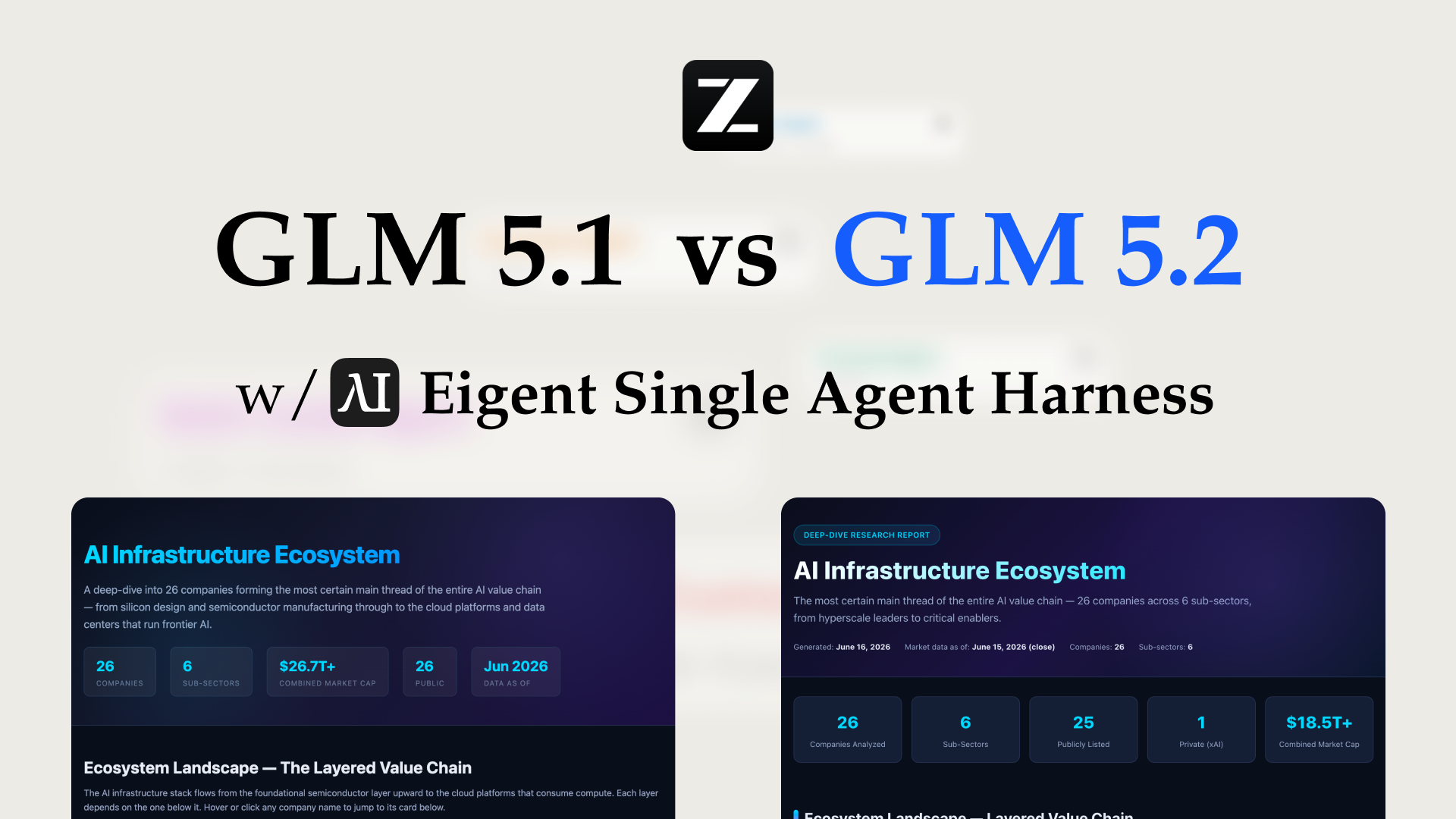
Long-Horizon Task: GLM-5.1 vs GLM-5.2 on Eigent

Long-Horizon Task: GLM-5.1 vs GLM-5.2 on Eigent

Do a deep-dive research on 26 companies in the AI infrastructure ecosystem — the most certain main thread of the entire AI value chain. Cover these 6 sub-sectors (pick representative companies in each, from large-cap leaders down to smaller players): AI Data Center (compute infrastructure / build-out); GPU / AI Chips (training & inference silicon, ASICs, IP); Servers, Networking & Optical Modules (switches, NICs, optical interconnect); Power, Liquid Cooling & Energy Storage (power supply, thermal, energy management); AI Cloud / Compute Platform (hyperscalers, GPU clouds, compute-rental platforms); Supporting Ecosystem (HBM / advanced packaging, foundry, connectors & other critical components). For each company, research: company name, sub-sector, HQ / country; core products and its specific role in the AI chain; public or private (ticker + exchange if listed; if private, note latest valuation / funding round); market cap or valuation size (used for ranking); positioning and moat in the ecosystem (1–2 sentences); key customers / competitors. Ordering: within each sub-sector, rank from largest to smallest (by market cap / valuation). Structure the whole thing top-down: from the full hardware-ecosystem landscape → down to each individual company. Output requirements: First, generate a structured data file ai_infra_data.json — containing all 26 companies with the fields above, the 6 sub-sector classifications, a public/private flag, and a cross-company comparison matrix (sub-sector × key dimensions). Then generate a polished HTML report from that JSON: include an ecosystem landscape / layered diagram, sector sections, company cards, a clear visual indicator for public vs. private (tags or color coding), a market-cap ranking chart, and a sortable/filterable comparison table. Make the design professional, information-dense, and interactive. Verify the research data for accuracy first (listing status, tickers, valuations — use the latest figures and cite sources), then generate the report. Send the task in single-agent mode.

Build 10 Chinese New Year HTML5 Games with Eigent

Build 10 Chinese New Year HTML5 Games with Eigent

Build 10 separate and COMPLETE games with topics related to 2026 Chinese New Year (Horse) in HTML, CSS and JS (no libraries). Games must be fun, original, polished, mobile-friendly. Include scoring, scaling difficulty, restart buttons, and smooth visuals. Cover: arcade, puzzle, endless runner, reaction, strategy, memory, 2-player local, idle, retro pixel, and 1 experimental game.

Build a 3D Snow Bros Platformer with Gemini 3.1 Pro

Build a 3D Snow Bros Platformer with Gemini 3.1 Pro

Create a modern 3D side-scrolling platformer inspired by Mario, combined with Snow Bros mechanics. The player can shoot snow projectiles to freeze monsters into snowballs, then kick them to chain into other enemies. Include a scoring system, lives display, scaling difficulty, and a restart function with rich 3D layered environments.

Automate everything with AI workforce on desktop
Download Eigent

오늘 Eigent를 사용해보세요

오픈 소스 데스크톱 앱을 다운로드하세요. 여러분의 AI 워크포스가 여러분의 기기에서 실행됩니다.

Eigent 다운로드
Eigent

AI 워크포스 자동화에 대한 최신 소식, 튜토리얼, 출시 정보를 받아보세요.

제품Eigent환경요금엔터프라이즈
둘러보기솔루션활용 사례스킬플러그인블로그
개발자문서GitHubCAMEL-AI오픈소스 펀드파트너
다운로드오픈 소스용
회사회사 소개브랜드채용이용약관개인정보처리방침보안 및 신뢰쿠키 정책환불 및 체험 정책

모든 권리 보유 © 2026 EIGENT UK LTD

Eigent 1.0 새 버전 출시!download