
Troubleshooting
How do I download task logs for support?
Learn how to take a screenshot of a problem in your Eigent session, download the Eigent and Camel logs, and email everything to support@eigent.ai for debugging.
If you encounter a bug while working on a Task, send our support team a screenshot and both log files so we can investigate.
1. Take a screenshot#
Open the session where you encountered the bug. Take a screenshot showing the affected Task and any error message or unexpected behavior. Keep this session open while you download the logs.
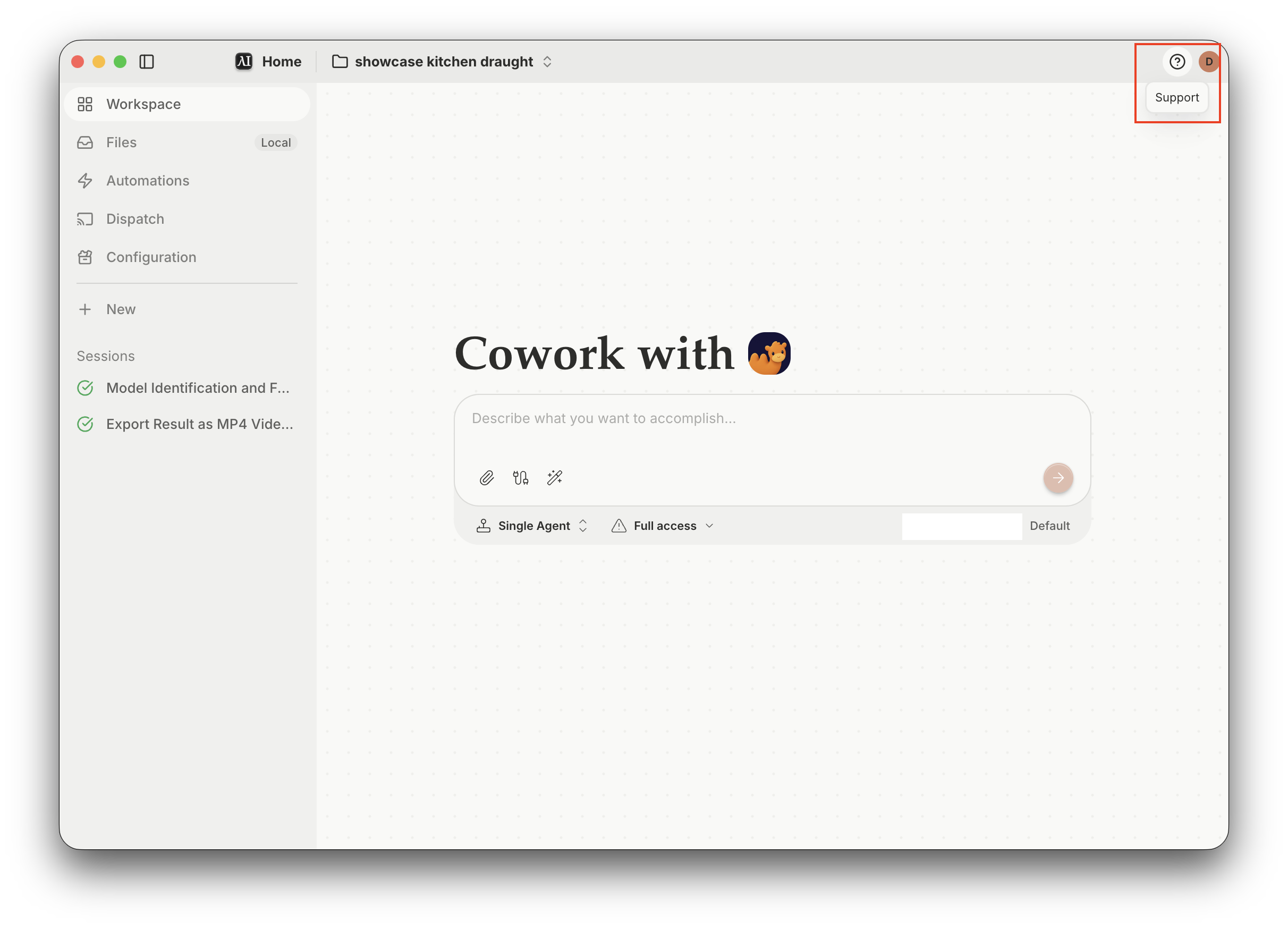
2. Open Support#
Click the Support icon (the question mark) in the top-right corner of the Eigent app.
3. Download both logs and email support#
In the Support window, find Download logs and click Download next to each of these:
- Eigent log — desktop app logs.
- Camel log — agent task logs from the CAMEL backend.
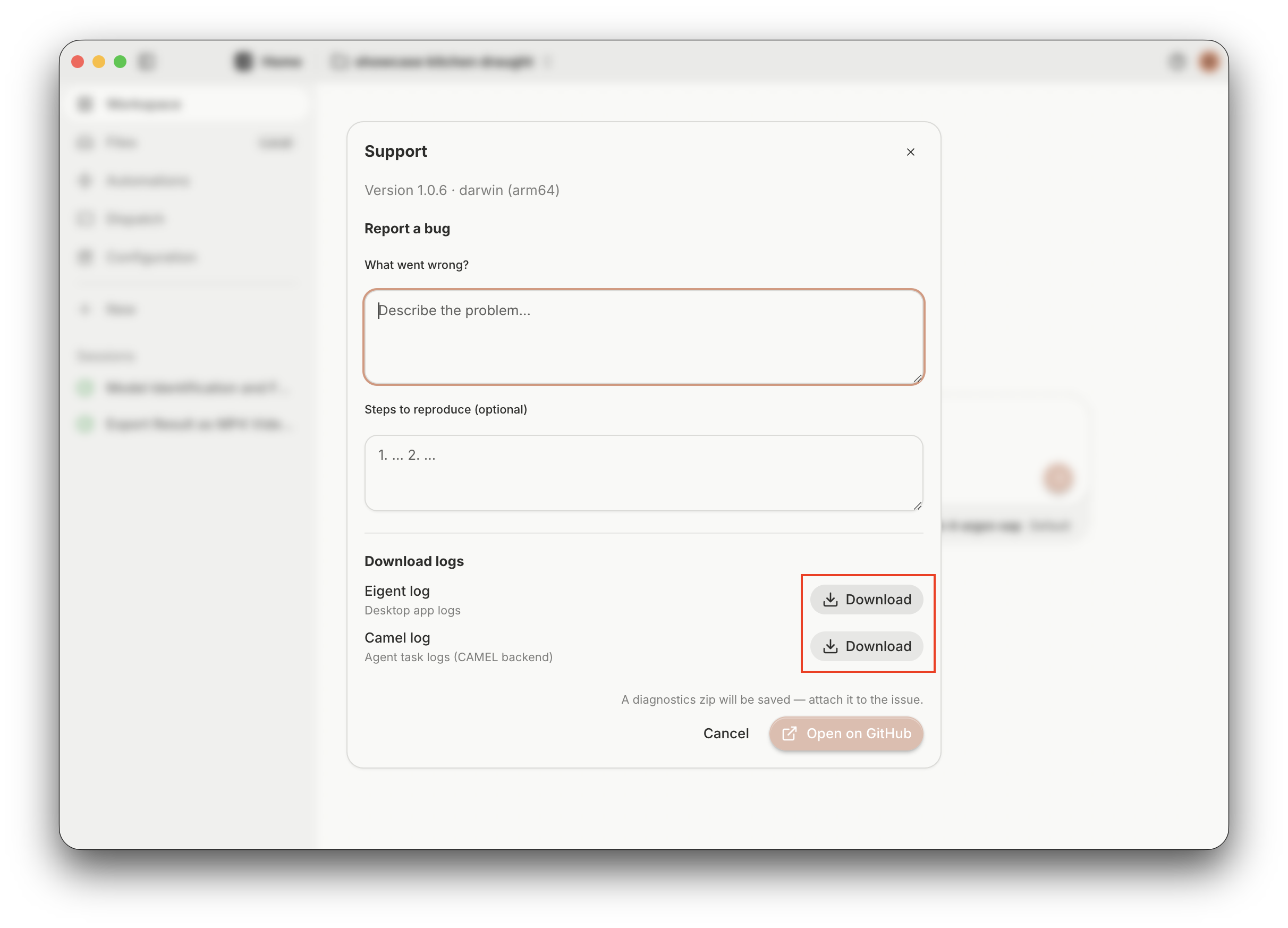
Email support@eigent.ai with:
- The screenshot of the issue.
- Both downloaded log files: Eigent log and Camel log.
- A brief description of what went wrong and the steps that led to it.
Still need help?
Contact our team and we'll help you sort it out.


