
Single Agent mode
Run a task with one CAMEL agent and monitor its progress, context, and outputs.
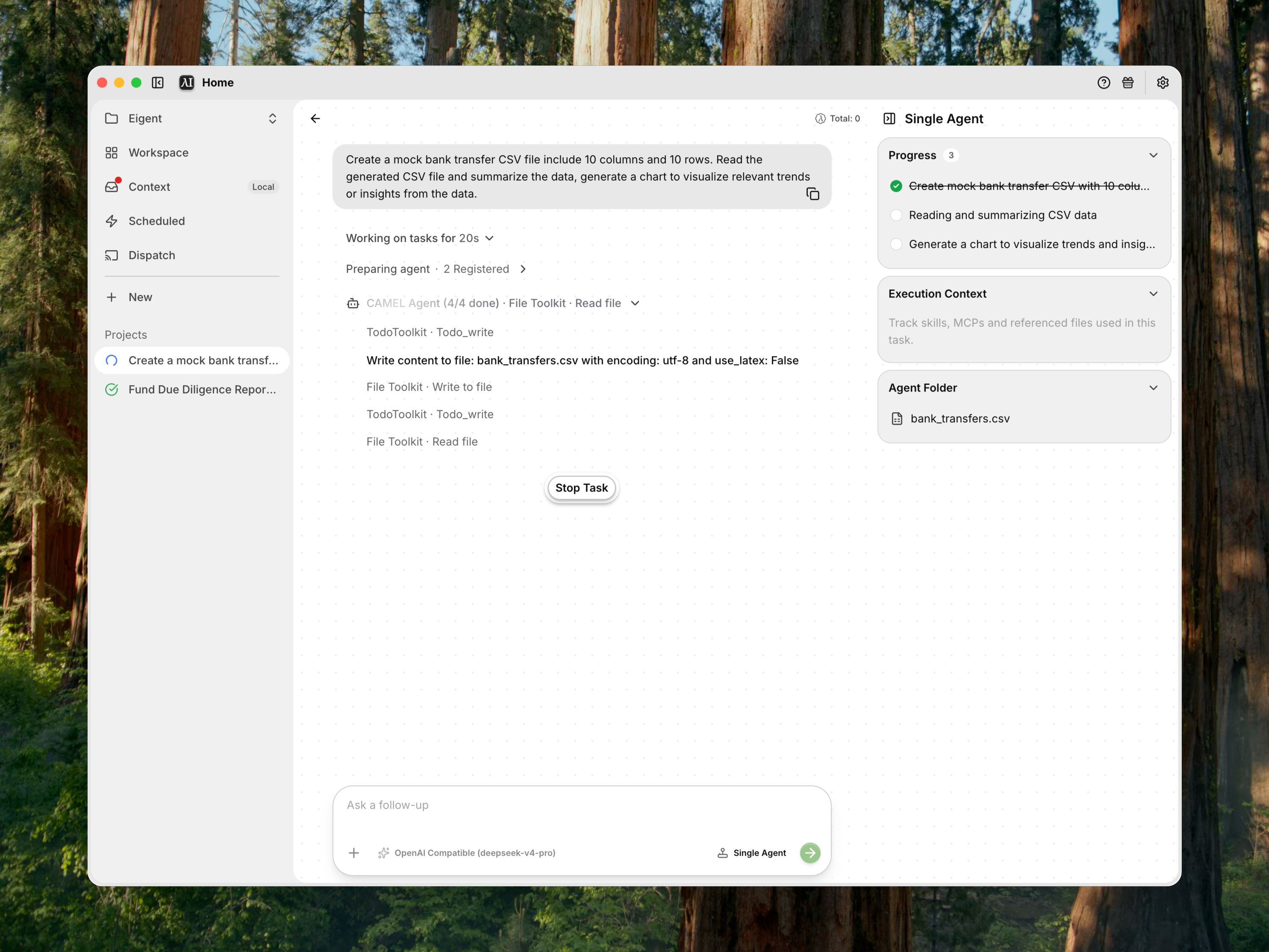
Single Agent mode assigns a task to one CAMEL-based agent instead of creating a coordinated multi-agent Workforce. The agent can still use models, tools, Skills, files, browser sessions, and terminal access.
Choose Single Agent mode
Use Single Agent mode for:
- Focused tasks with one clear goal
- Work that benefits from a continuous context
- Short tool-driven workflows
- Tasks where coordination overhead would add little value
- Iterative follow-ups handled by the same execution pattern
Use Workforce for broad tasks that benefit from specialized roles or parallel subtasks.
Start a Single Agent Session
- Open a Space.
- Select New session.
- Select Single Agent.
- Enter the Task and attach any required files.
- Send the request.
Eigent opens a Session within the active Space and starts the Task without a Workforce planning stage. Work is organized as Space → Session → Task.
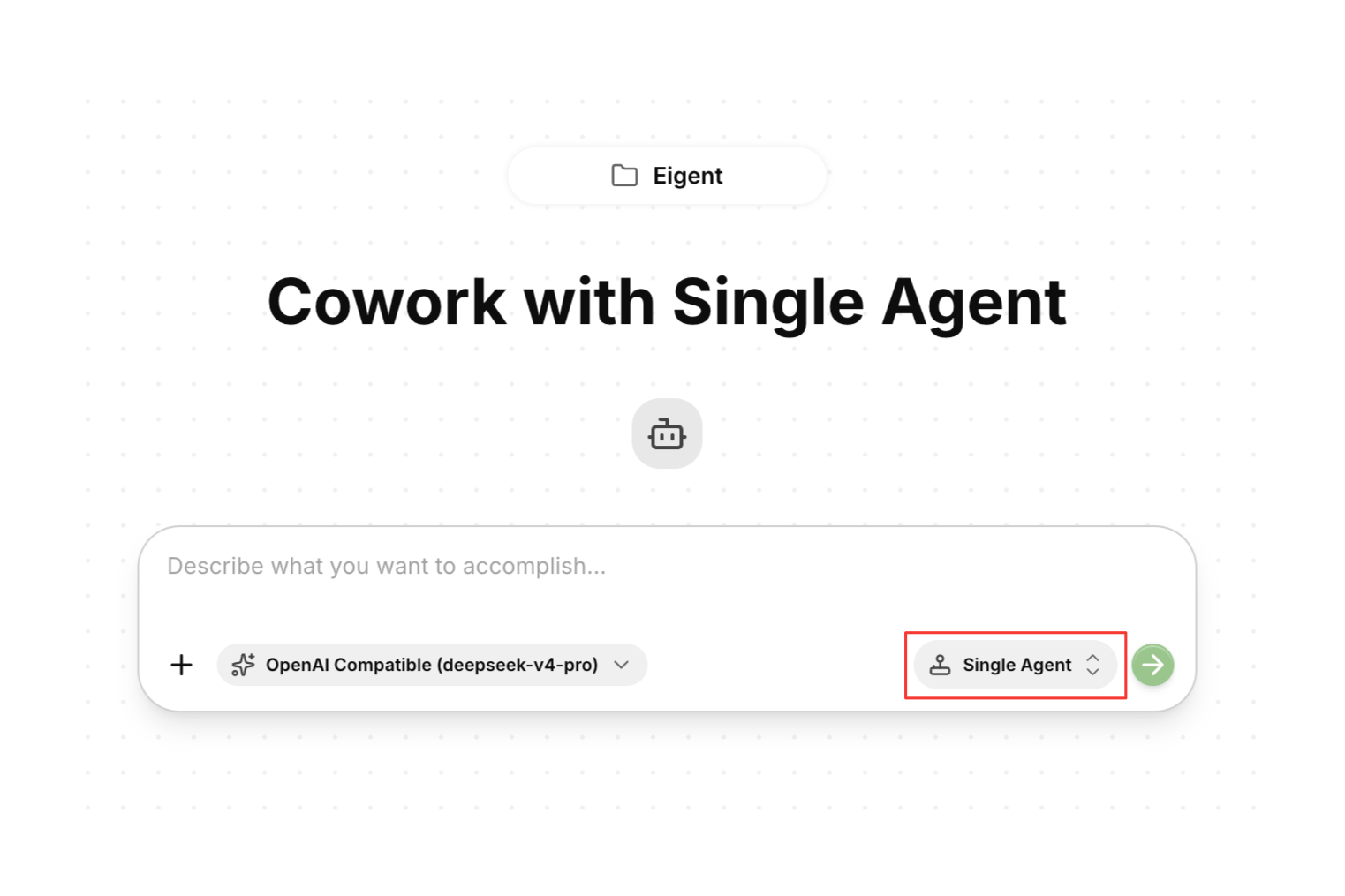
Monitor the agent
The Session side panel can show:
- Task progress
- Execution context
- Uploaded files
- Generated output files
- Skills and tools
The chat timeline shows tool calls, status updates, requests for user input, and the final response.
Use browser and terminal panels
When the agent uses browser or terminal tools, the corresponding panel becomes available in the Session. It shows the browser or terminal activity for the selected Task.
Continue with follow-ups
- Enter a follow-up request in the Session.
- Send the request.
- Select an earlier Task to review its work.
Related Tasks and follow-ups remain part of the same Session. Use New session when you want to start a different goal in the Space.
Compare execution modes
| Capability | Single Agent | Workforce |
|---|---|---|
| One continuous agent context | Yes | No, work is distributed |
| Task planning and splitting | Limited | Yes |
| Parallel specialized agents | No | Yes |
| Agent pool and workflow canvas | No | Yes |
| Browser, terminal, files, and Skills | Yes | Yes |
| Best for | Focused work | Complex multi-step work |
Troubleshooting
The task needs another specialty
Add the required tool to the agent, install a connector, or start a Workforce Session with specialized workers.
The agent cannot access a file
Attach the file to the Task or add it to the Space's working folder. Confirm that the active Space is connected to the correct folder.
The task is too broad
Split the request into smaller Tasks in the same Session or use Workforce mode.