
Automation
Automate Eigent tasks with schedules, webhooks, app events, or remote-control commands.
Automation turns a task prompt into reusable work that can run without manually opening the task composer.
Eigent supports Scheduled automations, Event automations, App automations, and remote-control commands.
Open Automation
In the sidebar, select Automation.
The Space sidebar provides access to Automation for the active Space. Each automation targets a Session within a Space and starts Tasks in that Session. The Home dashboard provides a view across Sessions.
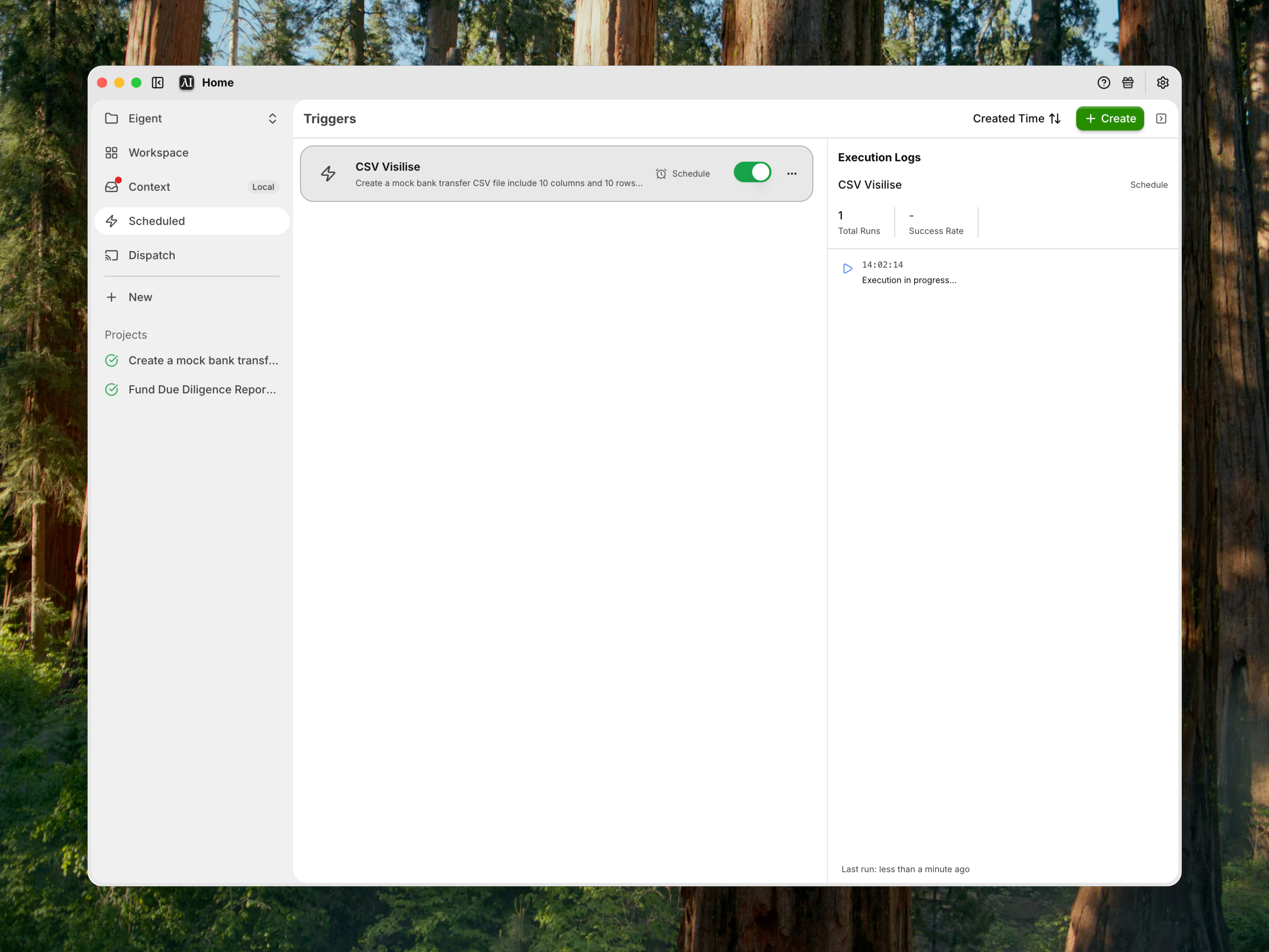
Choose an automation type
Scheduled automation
Runs a prompt once or on a daily, weekly, monthly, or custom cron schedule.
Event automation
Creates an HTTP endpoint that starts a task when an external system sends a request.
Create an automation
- Open Automation.
- Select Create.
- Enter an automation name.
- Select the Session within the relevant Space.
- Enter the task prompt.
- Choose Scheduled or App.
- Configure timing, event, or webhook values.
- Save the automation.
Manage automations
You can:
- Edit an automation
- Activate or deactivate it
- Delete it
- Sort by created time, last execution, or token cost
- Review automation run history
- Retry a failed automation run
Review execution logs
Open the execution log panel to see:
- Automation lifecycle events
- Automation run start and completion
- Errors and cancellations
- Webhook receipt
- Token or task metadata when available
Use the logs to distinguish automation-start failures from task-execution failures.
Control execution
Set:
- Maximum failure count
- Hourly execution limits
- Daily execution limits
- Expiration date for recurring schedules
These controls help prevent a misconfigured automation from generating unbounded work.
Security
- Treat webhook URLs as credentials.
- Restrict app-automation permissions.
- Review task prompts before enabling recurring execution.
- Add rate limits to event-driven automations.
- Disable automations that are no longer monitored.