

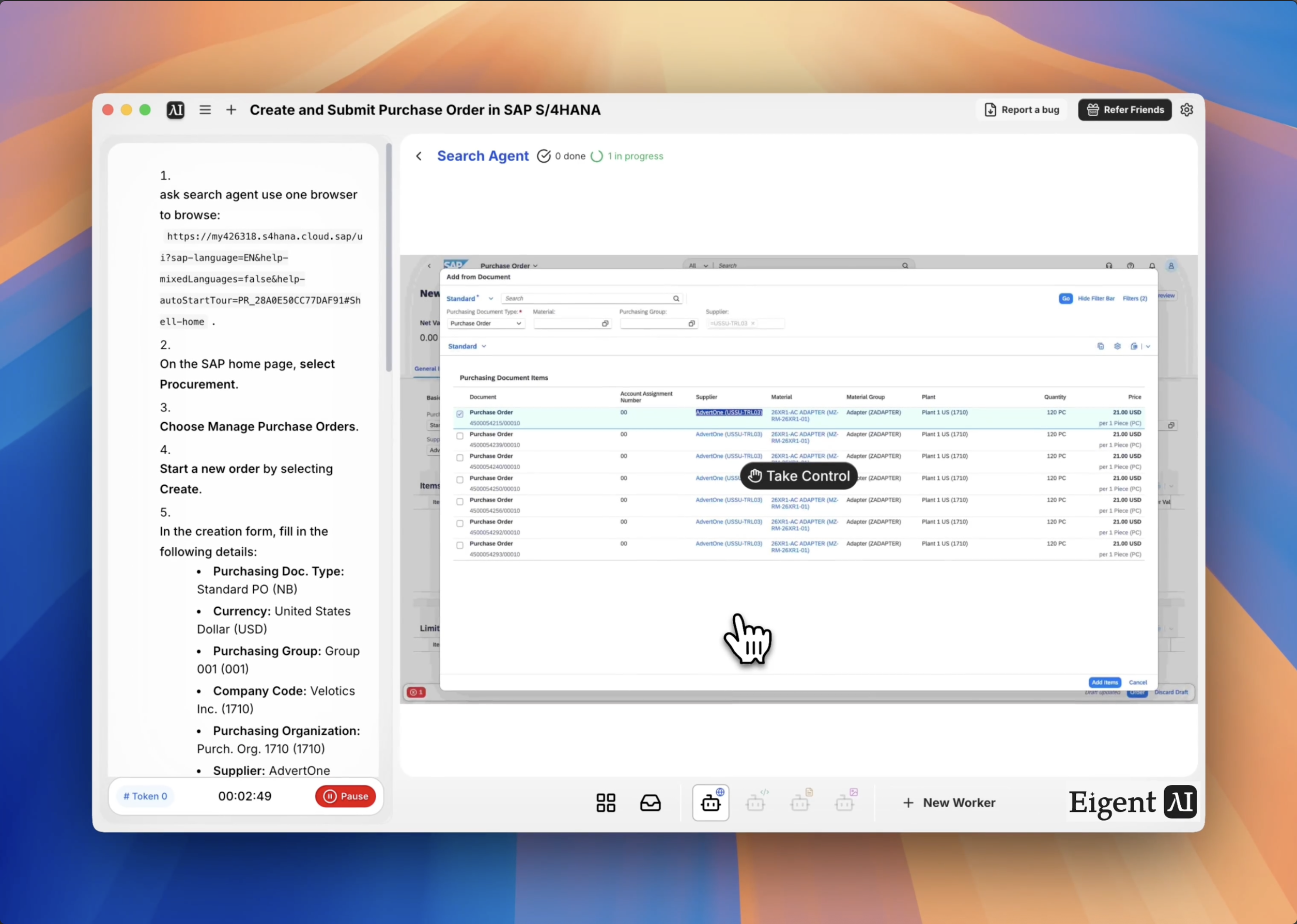
Automate SAP Purchase Orders Without Touching the Interface
Enterprise ERP systems like SAP S/4HANA are powerful, but navigating them manually is slow and error-prone. Creating a purchase order requires navigating to the right module, filling in the correct fields in the right sequence, and importing line items from existing documents — all before submitting. One wrong field and the order fails validation.
Eigent can navigate SAP's browser interface just like a human would, following a precise set of steps from start to finish — without you ever opening the ERP yourself.
Set Up Browser Access to SAP
Make sure your SAP S/4HANA instance is accessible in a browser and that you're logged in (or Eigent has the credentials it needs). For this workflow, the target URL is:
https://my426318.s4hana.cloud.sap/ui?sap-language=EN&help-mixedLanguages=false&help-autoStartTour=PR_28A0E50CC77DAF91#Shell-home
If you're working with your own SAP instance, substitute your organization's URL in the prompt.
Give Eigent the Full Procurement Task
This workflow is detailed, so your prompt should be too. Here's the one used in this use case:
Open your browser and go to the SAP home page. Select Procurement → Manage Purchase Orders → Create. Fill in: Purchasing Doc. Type: Standard PO (NB), Currency: USD, Purchasing Group: Group 001 (001), Company Code: Velotics Inc. (1710), Purchasing Organization: Purch. Org. 1710 (1710), Supplier: AdvertOne (USSU-TRL03). In the Items table, select Add from Document, run the search by selecting Go, and check the box for the first purchase order in results. Confirm with Add Items, then submit with Order.
The more precise your instructions, the more reliably Eigent can execute the workflow without needing to pause and ask questions.
Eigent Navigates the SAP Interface
Eigent's browser agent opens SAP in a controlled session and follows your instructions step by step — clicking through menus, populating form fields, running searches, and selecting records. It operates exactly as a trained SAP user would, just without the manual effort. You can watch the browser session in real time or let it run in the background.
Line Item Import from Existing Document
One of the more complex parts of SAP PO creation is pulling line items from a prior document. Eigent handles this by selecting "Add from Document" in the Items table, running the search dialog, selecting the correct purchase order from the results list, and confirming the selection to populate the line items. This eliminates manual re-entry and the risk of transcription errors across fields.
Submit and Confirm
Once all fields are populated, Eigent selects Order to submit the purchase order. It captures the confirmation screen and reports back the PO number so you have a reference for your records.
Why This Matters
SAP workflows are a major time sink for procurement and finance teams. A single PO creation that takes 10–15 minutes manually can be completed in seconds with Eigent — with consistent accuracy across every field. And because Eigent follows explicit instructions, the workflow is auditable: you always know what was entered and why.
What to Try Next
Create five purchase orders from the order data in this spreadsheet.
Check the status of all open purchase orders and list any that are past their delivery date.
Submit a goods receipt for PO number 4500000123.
Generate a summary report of all purchase orders created this month.
Tips for Better Results
-
Use exact SAP field values. SAP is strict about dropdown values and codes. Provide the exact display text (e.g., "Standard PO (NB)" not just "Standard PO") to avoid validation errors.
-
Confirm browser session stability. SAP sessions can time out. If you're running a long workflow, make sure your session timeout is set appropriately before starting.
-
Add error handling to the prompt. You can tell Eigent: "If any step fails, stop and tell me what went wrong before continuing." This prevents partial submissions from going unnoticed.