

Turn Raw Bank Data Into an Investor-Ready Financial Report
Every finance team has the same end-of-quarter ritual: export transactions from the bank, wrangle them in a spreadsheet, build a chart, format a report, and hope the numbers match what went into the deck. Eigent collapses this entire sequence into a single prompt — from raw CSV to polished HTML report, ready to share with investors.
Prepare Your Bank Data File
Export your bank transaction records as a CSV file and save it to your desktop. The file used in this workflow is named bank_transacation.csv — Eigent will pick it up by name from your desktop, so make sure the filename matches what you reference in the prompt, or describe it clearly.
The CSV doesn't need to be pre-cleaned. Eigent can handle raw export formats from most major banks and accounting tools.
Give Eigent the Report Task
The prompt is direct:
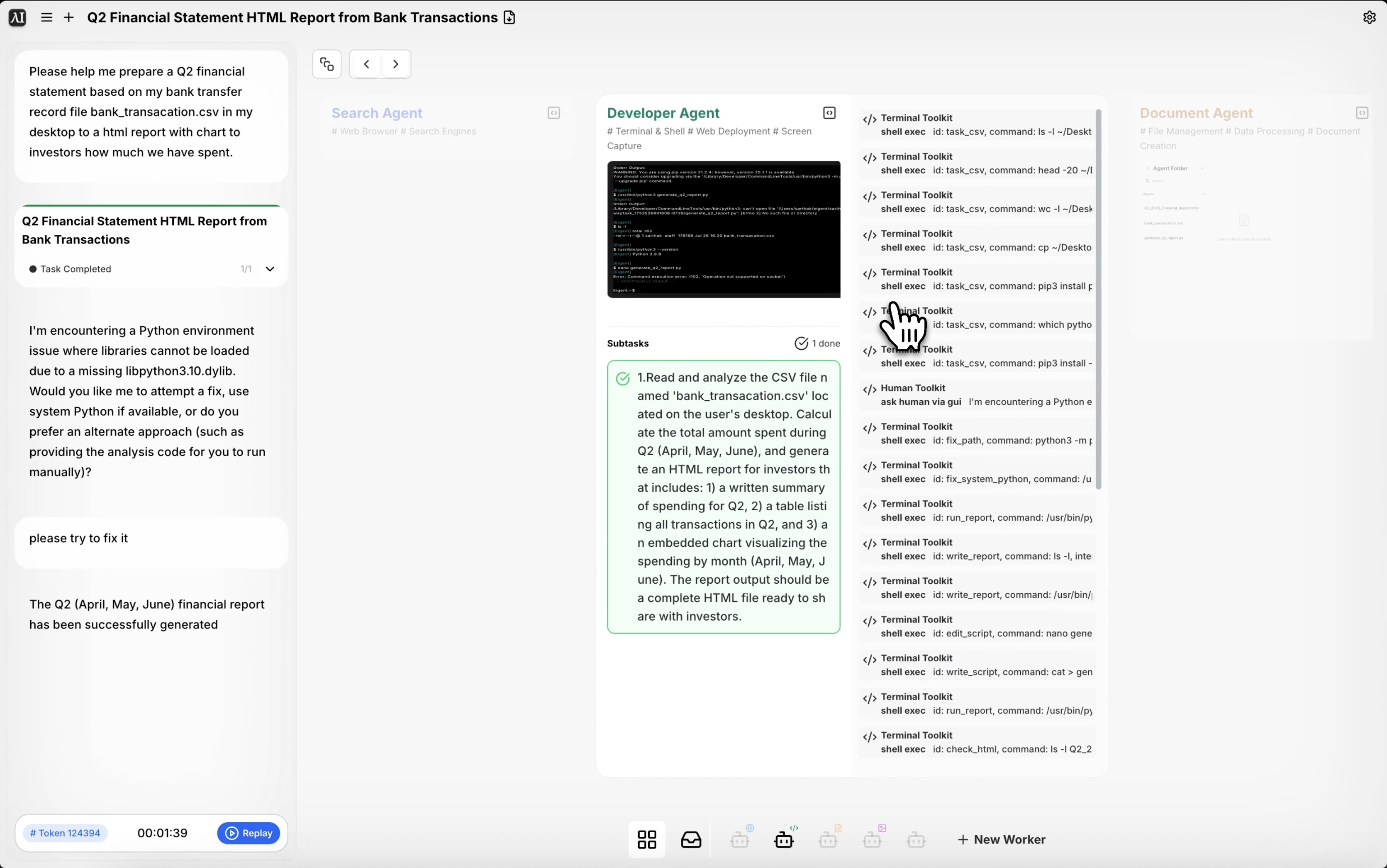
Please help me prepare a Q2 financial statement based on my bank transfer record file bank_transacation.csv on my desktop. Generate an HTML report with charts showing investors how much we have spent.
You can extend the prompt to specify categories (payroll, infrastructure, marketing), date ranges, or how you want the data grouped. The more context you provide, the more structured and useful the output will be.
Eigent Parses and Analyzes the Data
Eigent reads the CSV file and processes the transaction data — parsing dates, amounts, and categories. It identifies Q2 transactions (April through June), calculates totals, and groups spending into meaningful categories based on transaction descriptions.
If your CSV has custom columns or categories, mention them in the prompt so Eigent knows how to interpret the data.
Report and Chart Generation
With the data analyzed, Eigent generates an HTML report containing a spending summary, category breakdowns, and interactive charts. The report is structured for investor consumption — clear headings, a summary section, and visual representations of where money went throughout the quarter.
The HTML file is saved to your desktop and opens directly in any browser.
Review and Refine
Open the HTML report and review the numbers and charts. If you want to adjust the presentation — change the color scheme, add a specific section, or break out a particular spending category — follow up with Eigent:
Add a section showing the month-over-month spending trend for Q2.
Break out the "infrastructure" category by vendor.
Why This Matters
Preparing a financial report manually — exporting data, cleaning it, building pivot tables, designing charts, formatting the layout — is the kind of task that takes half a day and gets done under deadline pressure. Eigent compresses this into minutes. And because the output is an HTML file, it's portable, shareable by link, and doesn't require any specific software to open.
What to Try Next
Generate the same report for Q1 and compare it side by side with Q2.
Create a version of this report grouped by department instead of by category.
Export this spending summary as a PDF for the board meeting.
Identify the top 10 largest transactions from this CSV and flag any that look unusual.
Tips for Better Results
-
Name your file clearly in the prompt. Eigent works best when the filename in the prompt matches the actual file on your desktop. If there are multiple CSVs, specify the exact name.
-
Include date range context. If your CSV covers a full year, telling Eigent "focus on Q2 — April through June" ensures it filters the right transactions.
-
Ask for a narrative summary. A prompt like "add a two-paragraph executive summary at the top" makes the report more useful for investors who won't read every line of the data.