

Turn Every Slack Message Into a CRM Lead — Automatically
Your sales team is dropping lead details into Slack. Your CRM should already have them. Bridging that gap normally means building a Zapier workflow, writing a webhook, or accepting that some leads won't get logged. Eigent's Triggers feature eliminates the gap entirely: any message posted to your designated Slack channel automatically kicks off an Eigent workflow that creates or updates a lead in Odoo CRM — without anyone clicking a thing.
Meet Eigent Triggers
Triggers is a feature in Eigent that turns it into an always-on automation platform. Instead of waiting for a user prompt, Eigent listens for external events and responds automatically.
Two trigger types are available:
- Schedule — runs a workflow on a recurring time basis (hourly, daily, weekly)
- App Trigger — fires when an event occurs in a connected external app (like a new Slack message)
For this workflow, you'll use the App Trigger with Slack as the source.
Create a Slack App and Get Your Credentials
Eigent connects to Slack via the official Slack API. You'll need to create a Slack app at api.slack.com before configuring the trigger.
In your Slack app settings:
- Navigate to OAuth & Permissions and copy your Bot User OAuth Token (
xoxb-...) - Navigate to Basic Information and copy your Signing Secret
- Enable Event Subscriptions and add Eigent's webhook URL as the endpoint
- Install the app to your Slack workspace
These credentials are what Eigent uses to listen for incoming messages from your workspace.
Configure the App Trigger in Eigent
Open the Triggers tab in the Eigent UI (next to Workspace and Agent Folder) and click + Create:
- Trigger Type: App Trigger
- App: Slack
- Slack Bot Token: paste your
xoxb-...OAuth token - Slack Signing Secret: paste your signing secret
- Project Name:
Sync Slack Lead to Odoo CRM
With these credentials saved, Eigent begins listening on your Slack workspace via the webhook.
Set Up the Target Slack Channel
Create a private Slack channel called #sales-team (or use an existing channel). Add your Eigent bot app to the channel — Eigent needs to be a member of the channel to receive messages from it.
Once the bot is added, any message posted to #sales-team will fire the Eigent trigger.
The Automation in Action
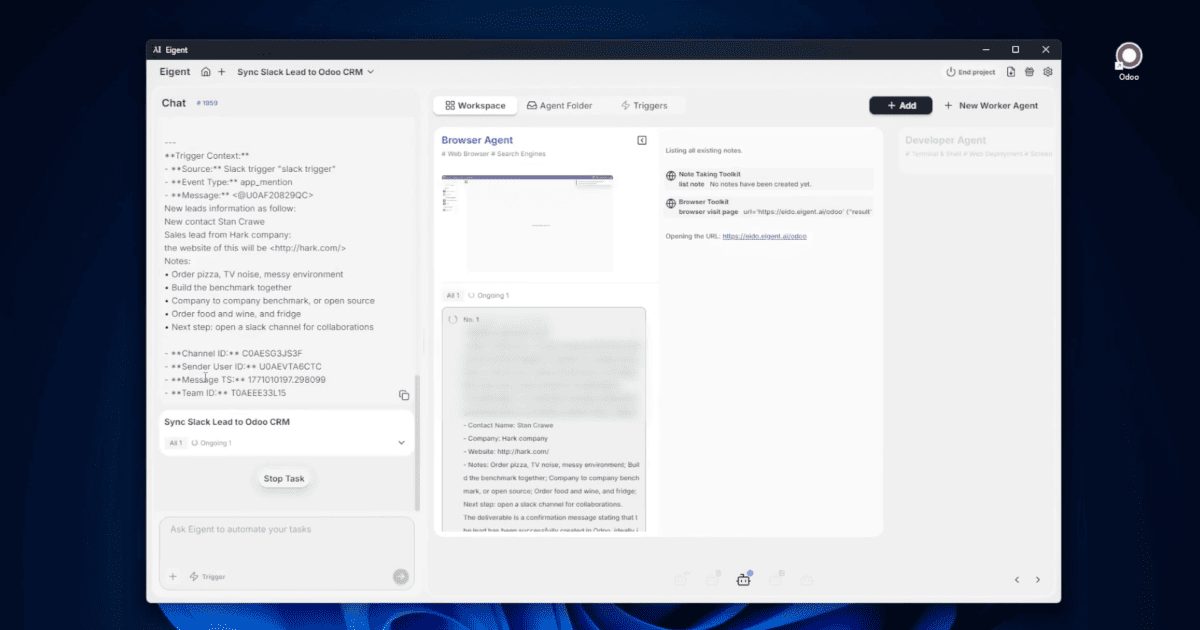
When a message arrives in #sales-team, Eigent activates automatically — no prompt required:
- The Browser Agent wakes up and reads the incoming Slack message
- It parses the message for lead information — company name, contact details, deal context, or any structured data included in the message
- It opens Odoo CRM in the browser (already authenticated)
- It creates a new lead record — or updates an existing one — with the parsed information
- It outputs a confirmation back to the Eigent chat thread
The entire process runs in the background. By the time you check your CRM, the lead is already there.
Why This Matters for Sales Teams
CRM hygiene is one of the hardest habits to enforce on a sales team. The more steps between a conversation and a logged CRM entry, the more data falls through the cracks. A trigger-based automation removes the habit requirement entirely: if the lead was mentioned in Slack, it's in Odoo. No exceptions, no manual entry, no follow-up reminders.
The same trigger architecture extends to other use cases. You can use App Triggers to sync messages from any Slack channel to any CRM, ticket system, or database that Eigent can reach via a browser.
What to Try Next
Set up a second trigger on a #support-tickets channel that creates Odoo helpdesk tickets automatically.
After syncing a lead to Odoo, have Eigent reply in the Slack thread with a confirmation and the CRM link.
Create a Schedule trigger that checks Odoo every morning for leads that haven't been contacted in 48 hours and posts a summary to #sales-team.
Connect a second App Trigger to a different Slack channel and sync leads to a different Odoo pipeline stage based on which channel the message came from.
Tips for Better Results
-
Structure your Slack messages consistently. The Browser Agent parses free-form messages, but it performs best when messages follow a consistent format — e.g., "New lead: [Company], [Contact Name], [Email], [Notes]." Encouraging your team to use a template makes parsing more reliable.
-
Test with a dedicated test channel first. Before pointing the trigger at your live
#sales-teamchannel, create a#sales-team-testchannel and verify the full end-to-end flow. Check the Odoo record created and confirm all fields mapped correctly. -
Use the Schedule trigger as a safety net. Pair your App Trigger with a daily Schedule trigger that audits recent Slack messages against Odoo leads — catching any messages that may have been missed during downtime or rate limiting.