

Import Tickets and Generate a Statistical Report — Without Touching the UI
IT and ops teams often deal with the same bottleneck: new tickets arrive in flat files or exported spreadsheets, and someone has to manually enter them into the ticketing system one by one. Then, separately, someone else has to pull a report from the system with charts for the weekly review. Eigent handles both steps — ticket import and report generation — in a single workflow.
Set Up Your Ticket System and Local Files
For this workflow, you need two things ready:
- Your ticket management system accessible via browser (in this case, at
http://localhost:9229/mock_website.html) - A local folder containing the new ticket files to be imported (in this case, at
/Users/enrei/Desktop/new_tickets)
Adapt these paths to match your actual system URL and ticket file location. The tickets can be in any readable format — JSON, CSV, or text files.
Write the Import and Report Prompt
The prompt covers the full workflow:
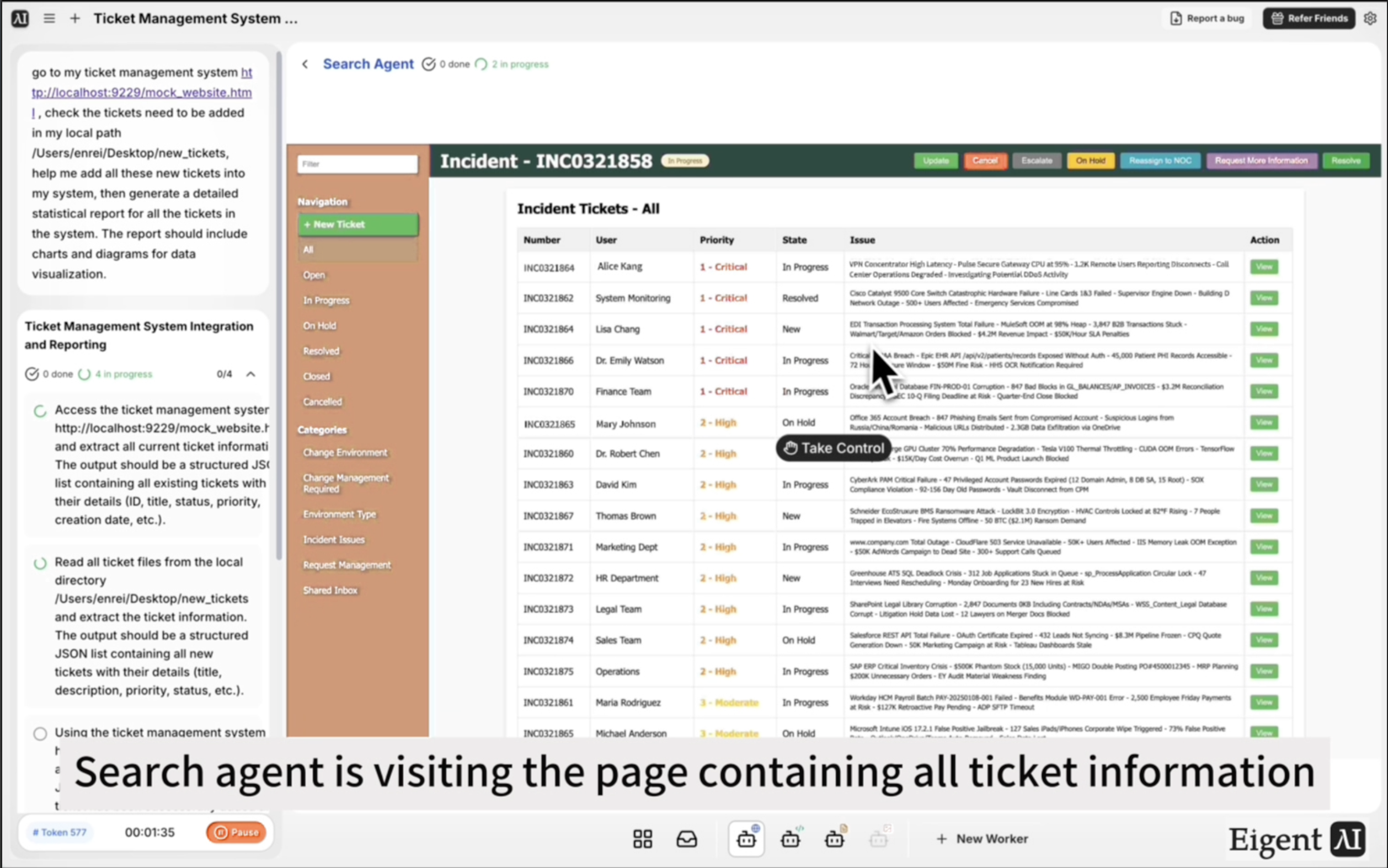
Go to my ticket management system at http://localhost:9229/mock_website.html. Check the tickets that need to be added from my local path /Users/enrei/Desktop/new_tickets. Add all these new tickets into the system. Then generate a detailed statistical report for all the tickets in the system. The report should include charts and diagrams for data visualization.
Eigent will read the local files, navigate to the ticket system in the browser, enter each ticket, and then pull the full data to generate the report.
Eigent Reads the New Ticket Files
Before touching the ticket system, Eigent reads all the files in your specified local folder. It parses each ticket's details — title, description, priority, assignee, category, or whatever fields your system uses — and organizes them for sequential import.
Browser-Based Ticket Import
Eigent's browser agent opens your ticket management system and adds each new ticket through the UI — navigating to the new ticket form, filling in the fields, and submitting. It does this for every file in the local folder, one by one, confirming each submission before moving to the next.
If your system has a bulk import feature, you can ask Eigent to use that instead:
If the system supports bulk import, use that instead of adding tickets one at a time.
Statistical Report Generation
Once all new tickets are imported, Eigent pulls the full ticket dataset from the system and generates a statistical report. The report includes charts and diagrams covering metrics like ticket volume by category, status distribution (open, in progress, closed), priority breakdown, average resolution time, and trends over time.
The report is saved as an HTML file and opened in your browser for review.
Why This Matters
Manual ticket entry and reporting are two of the most time-consuming administrative tasks in IT operations. Both are mechanical enough to automate entirely — the only reason they stayed manual for so long is that automation required custom integrations. Eigent uses the same browser interface a human would, which means it works with any ticketing system that has a web UI, without requiring API access or custom code.
What to Try Next
Check for any tickets in the system that have been open for more than 14 days and generate a follow-up report.
Import tickets from this new folder and send a Slack notification when the import is complete.
Filter the statistical report to show only high-priority tickets from the last 30 days.
Export the full ticket list from the system to a CSV on my desktop.
Tips for Better Results
-
Name your ticket fields consistently. If your local files use "priority: high" but your ticket system uses "Priority Level: High", mention this in the prompt so Eigent can map the fields correctly.
-
Run the import on a small batch first. Test with two or three tickets before running the full folder, so you can verify the field mapping looks right before committing to the full import.
-
Ask for an import summary. Adding "after importing, tell me how many tickets were added successfully and if any failed" gives you a clear audit trail of the import run.