
Read a Technical Blog and Post a Tweet — Using a Local Model
This workflow demonstrates three of Eigent's advanced capabilities working together: a customized MCP tool that gives Eigent Twitter access, a tailored Twitter Agent that handles content creation, and a local open-source model that runs the intelligence layer — without sending your content to a cloud API. The result is a fully automated pipeline from blog URL to published tweet, running entirely on your own infrastructure.
Set Up the Twitter MCP and Local Model
This workflow requires two things to be configured in Eigent before you start:
- Twitter MCP: A customized connector that gives Eigent the ability to post to Twitter/X on your behalf. Set this up in Settings → Connectors with your Twitter API credentials.
- Local model: Eigent can route this task through an open-source model you've deployed locally (e.g., via Ollama or a similar runtime). Configure your local endpoint in Settings → Models and select it as the active model for this session.
Once both are in place, the entire workflow runs locally — the blog content is read, the tweet is drafted, and the post is sent, without any data leaving your machine.
Write the Blog-to-Tweet Prompt
Point Eigent at the source blog and describe the task:
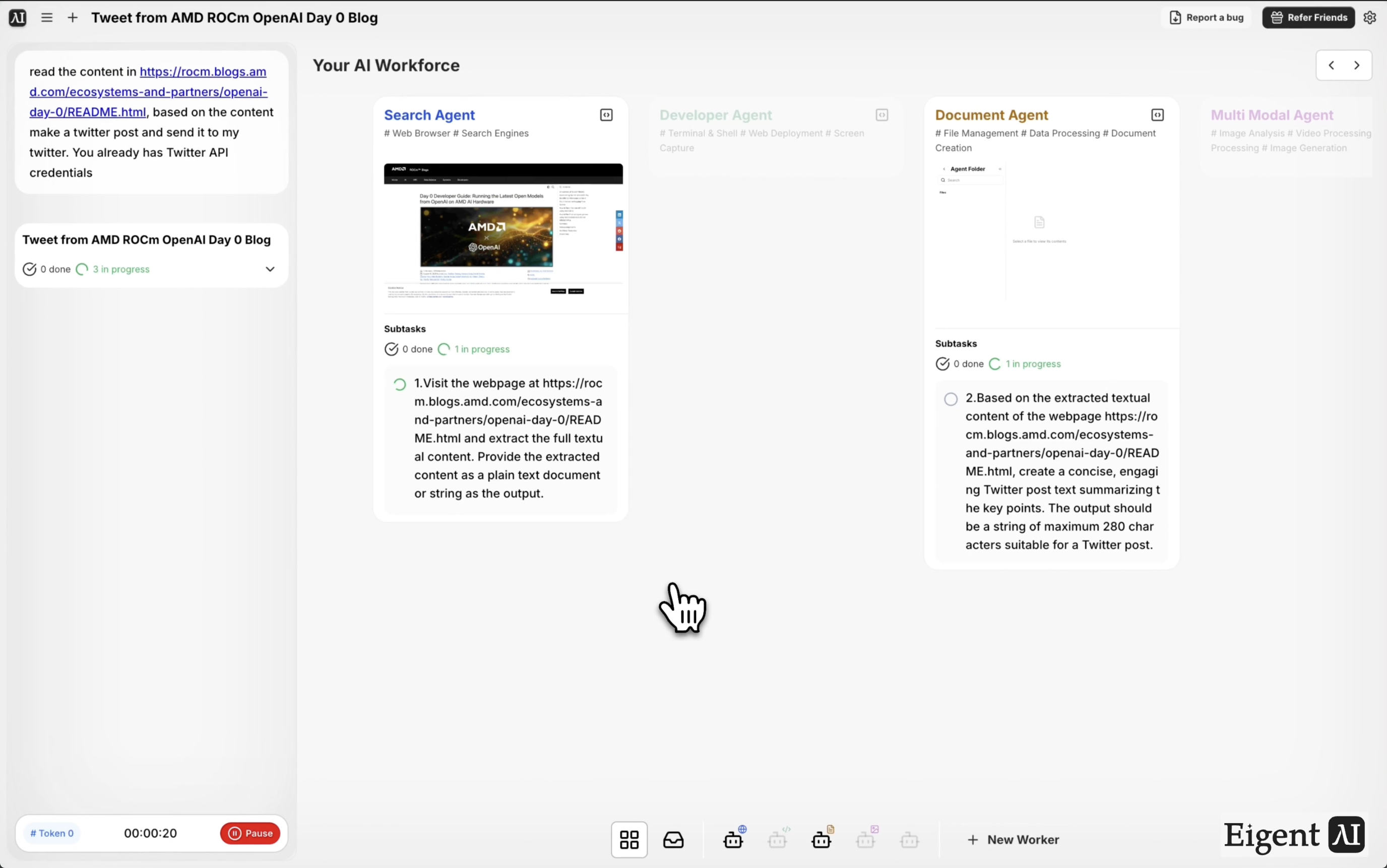
Read the content at https://rocm.blogs.amd.com/ecosystems-and-partners/openai-day-0/README.html. Based on the content, create a Twitter post and send it to my Twitter account.
Eigent's browser agent will fetch the page content and pass it to the Twitter Agent for processing.
The Browser Agent Reads the Blog
Eigent fetches the AMD ROCm blog post about OpenAI Day 0 support — a technical post covering how AMD's ROCm software stack achieved Day 0 compatibility with OpenAI's latest models. The browser agent extracts the key points: the headline finding, what "Day 0" means in context, and the most quotable technical insight.
The Local Model Drafts the Tweet
The extracted blog content is passed to your locally deployed model, which runs as the Twitter Agent. The model reads the material, identifies the most shareable insight or finding, and drafts a tweet that fits within the character limit and reads naturally for a technical audience.
Because this runs on a local model, you have full control over the model choice, the system prompt, and how the agent formats its output. You can tune the agent to match your brand voice or audience.
Tweet Published via MCP
The drafted tweet is sent to Twitter via the customized MCP tool, which handles authentication and the API call. You'll receive a confirmation with the live post URL once the tweet is published.
Why This Matters
Running a content pipeline entirely on local infrastructure is significant for organizations that handle sensitive topics, operate in restricted environments, or simply want to avoid cloud API dependencies. This workflow shows that the full loop — read, draft, publish — can run without any external model API calls. The customized MCP and tailored agent architecture also makes it reusable: swap the blog URL and the same pipeline publishes content from any source.
What to Try Next
Read the top three posts from this blog this week and post a tweet for each one.
Adapt this pipeline to post to LinkedIn instead of Twitter.
After posting, check the tweet's engagement after 24 hours and report back.
Run the same workflow for a blog post in German and translate the tweet to English before posting.
Tips for Better Results
-
Tune the local model prompt. The default Twitter Agent prompt produces neutral, factual tweets. If you want a more opinionated or punchy style, customize the agent's system prompt to match your voice.
-
Test with a review step first. Add "show me the draft before posting" to your prompt for the first few runs, so you can verify the local model's output quality before automating publishing.
-
Match the model to the content type. Technical blog posts (like this AMD ROCm post) benefit from a model with strong technical comprehension. For marketing or lifestyle content, a general-purpose model may work better.