
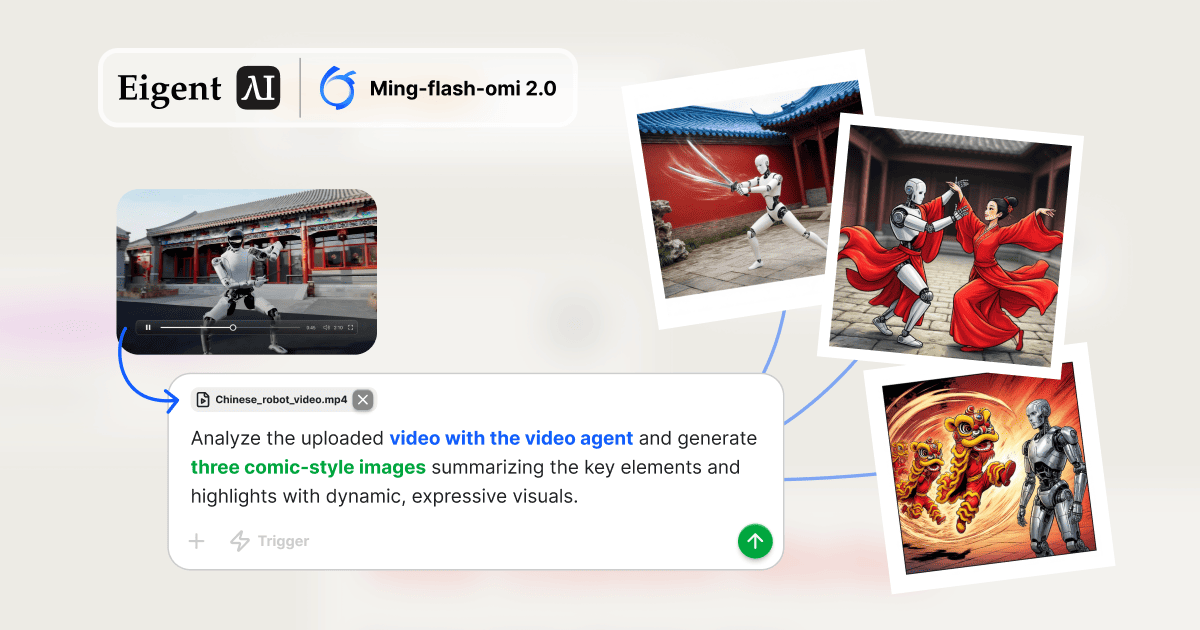
Turn Any Video into Comic Art — Automatically
Video content is rich with visual moments that deserve to be captured and shared. But extracting those moments, understanding what makes them compelling, and turning them into usable creative assets is a multi-step process that normally requires manual editing tools and design skills. This workflow shows Eigent doing all of it in sequence: analyze the video, extract key highlights, generate comic-style images — without a single frame of manual editing.
Configure Ming-Flash-Omni 2.0 for Multimodal Tasks
This workflow requires a model that handles both video understanding and image generation. Inclusion Ming-Flash-Omni 2.0 is a multimodal model that supports both capabilities natively. Configure it in Eigent under Settings → Models → Custom Models, then select it as the default.
Once configured, Eigent activates two specialized agents for this task:
- Video Agent — equipped with Terminal Toolkit and Ming Omni Skills for video processing
- Image Agent — equipped with Terminal Toolkit and Ming Omni Skills for image generation
Attach Your Video and Write the Prompt
Attach your video file and describe the creative output you want:
Analyze the uploaded video with the video agent and generate three comic-style images summarizing the key elements and highlights with dynamic, expressive visuals.
Eigent immediately splits this into two sequential tasks — the image generation task depends on the analysis output, so the Video Agent runs first.
Task 1 — Video Agent Extracts Structured Data
The Video Agent processes the uploaded video file and produces a structured JSON object containing:
- Key scenes with timestamps — the most visually significant moments in the video
- Main actions and events — specific movements or interactions that define the content
- Visual and emotional themes — the aesthetic and tonal elements most suitable for comic adaptation
This output is the "creative brief" passed to the Image Agent. Rather than generating images blindly from the raw video, the pipeline extracts meaning first — which produces far more intentional and relevant results.
Task 2 — Image Agent Generates Three Comic Panels
The Image Agent reads the video analysis JSON and derives a distinct text prompt for each of the three key elements identified. Using those prompts, it generates three comic-style PNG images — each one stylized, expressive, and visually dynamic.
The output files are saved to the agent's working directory:
comic_summary_1.pngcomic_summary_2.pngcomic_summary_3.png
Each image captures a different dimension of the source video — a specific movement, a character moment, a thematic element — making the set usable as a narrative sequence or standalone social media assets.
Where This Workflow Applies
This video-to-image pipeline opens up a range of practical content creation applications:
- Social media repurposing: Turn a long video into shareable image posts without manual editing
- Storyboarding: Extract visual breakdowns of key scenes from footage for production planning
- Product demos: Convert a screen recording or product walkthrough into illustrated summary cards
- Event highlights: Analyze a presentation or conference recording and generate illustrated recap images
The pipeline works on any video input — not just robot dance footage. The analysis step abstracts the structure of any video into semantically rich data that the image generator can act on.
What to Try Next
Analyze a product demo video and generate three promotional images highlighting the key features shown.
Take a 30-minute recorded meeting and generate five comic-panel summaries of the key decisions made.
Generate both comic-style and photorealistic versions of the same video highlights for A/B testing.
After generating the images, create a social media post for each one with a suggested caption.
Tips for Better Results
-
Use clear, well-lit video. The Video Agent's scene extraction works best on footage with distinct visual moments and clear subject matter. Low-quality or fast-cut video may produce less precise analysis.
-
Specify the art style. "Comic-style" covers a wide range — from manga to American superhero to newspaper cartoon. If you have a preferred visual style, include it in the prompt to guide the Image Agent's output.
-
Iterate on the analysis step. Before generating images, you can ask Eigent to show you the video analysis JSON and confirm it captured the right highlights. This is especially useful for longer or more complex videos.