

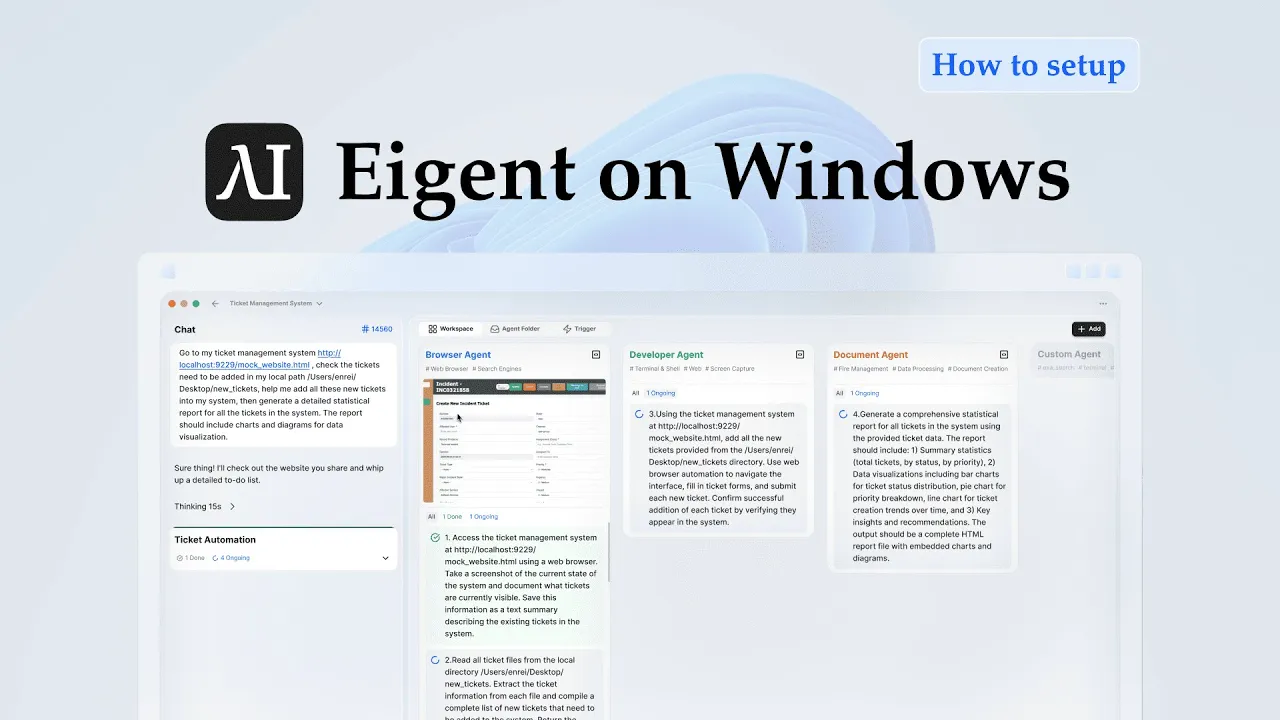
Organize a Messy Downloads Folder — and Get a Report in Word
Downloads folders are entropy in action. Installers, images, archived documents, and temporary files accumulate over months until opening the folder is its own small stressor. On Windows, Eigent can clean this up automatically — sorting everything into sensible categories and writing a summary report directly into an open Microsoft Word document, without any manual steps.
Open Microsoft Word in the Background
This workflow delivers the cleanup report as a Word document. Before running the task, open Microsoft Word — even if it's just a blank document. Eigent will detect the open application and write the report directly into it.
This is an example of Eigent working across applications: file operations happen through the Developer Agent, while the report is written by the Document Agent into the Word window running in the background.
Write the Cleanup Prompt
Here's the prompt used in this workflow:
My Downloads folder is a mess. Please help me organize it: move all installers to 'Software Backup', images to 'Image Library', and archive documents by year. Also, move any temporary files that haven't been opened in over 6 months to a folder named 'Expired Temporary Files'. I have Microsoft Word open in the background — write me a report of what you have done. Make it simple, no need to research.
The categories in this prompt are a good starting point, but you can customize them entirely to match how you think about your files.
The Developer Agent Handles File Operations
Eigent's Developer Agent scans your Downloads folder and categorizes each file:
- Installers (
.exe,.msi,.dmgfiles) → moved toSoftware Backup - Images (
.jpg,.png,.gif,.webp, etc.) → moved toImage Library - Documents (
.pdf,.docx,.xlsx,.pptx, etc.) → archived into year-based subfolders (e.g.,Documents/2023,Documents/2024) - Temporary files not opened in 6+ months → moved to
Expired Temporary Files
All moves are non-destructive — nothing is deleted, just reorganized.
The Document Agent Writes the Report
While the Developer Agent handles the file moves, the Document Agent writes a clean summary report into the open Word document. The report covers what was moved, how many files ended up in each category, and anything that was left in place because the category was ambiguous.
The report is intentionally simple — no charts, no formatting overhead — just a clear record of what Eigent did.
Review the Results
Once the task completes, check your Downloads folder to confirm the new structure, and review the Word report for a summary of what was moved. If you want to adjust the categorization — for example, moving certain file types into a different folder — follow up with Eigent:
Move all .zip files from 'Software Backup' to a new folder called 'Archives'.
Why This Matters
This use case demonstrates Eigent running on Windows with a two-agent split: one agent handles the file system, another handles the document output. This multi-agent architecture is what makes it possible to do file operations and report writing simultaneously, rather than waiting for one to finish before starting the other. The same pattern applies to any workflow that combines data processing with document generation.
What to Try Next
Do the same cleanup for my Desktop and write the report in the same Word document.
After organizing, find the 10 largest files in my Downloads folder and list them in the report.
Schedule this cleanup to run automatically every month.
Create a more detailed report with a table showing each file that was moved and where it went.
Tips for Better Results
-
Name your target folders clearly in the prompt. Eigent will create folders that match exactly what you specify — so "Software Backup" and "Expired Temporary Files" become the actual folder names in your Downloads directory.
-
Specify the time threshold for temporary files. "6 months" is the default in this workflow, but you can set it to 3 months, 1 year, or any duration that matches your actual usage patterns.
-
Ask Eigent to skip certain files. If there are specific files or subfolders in your Downloads that you want left untouched, include that in the prompt: "Don't move anything in the folder named 'Active Projects'."